Make a Mobile Deposit

×
1
- Log in to the Advancial Mobile App
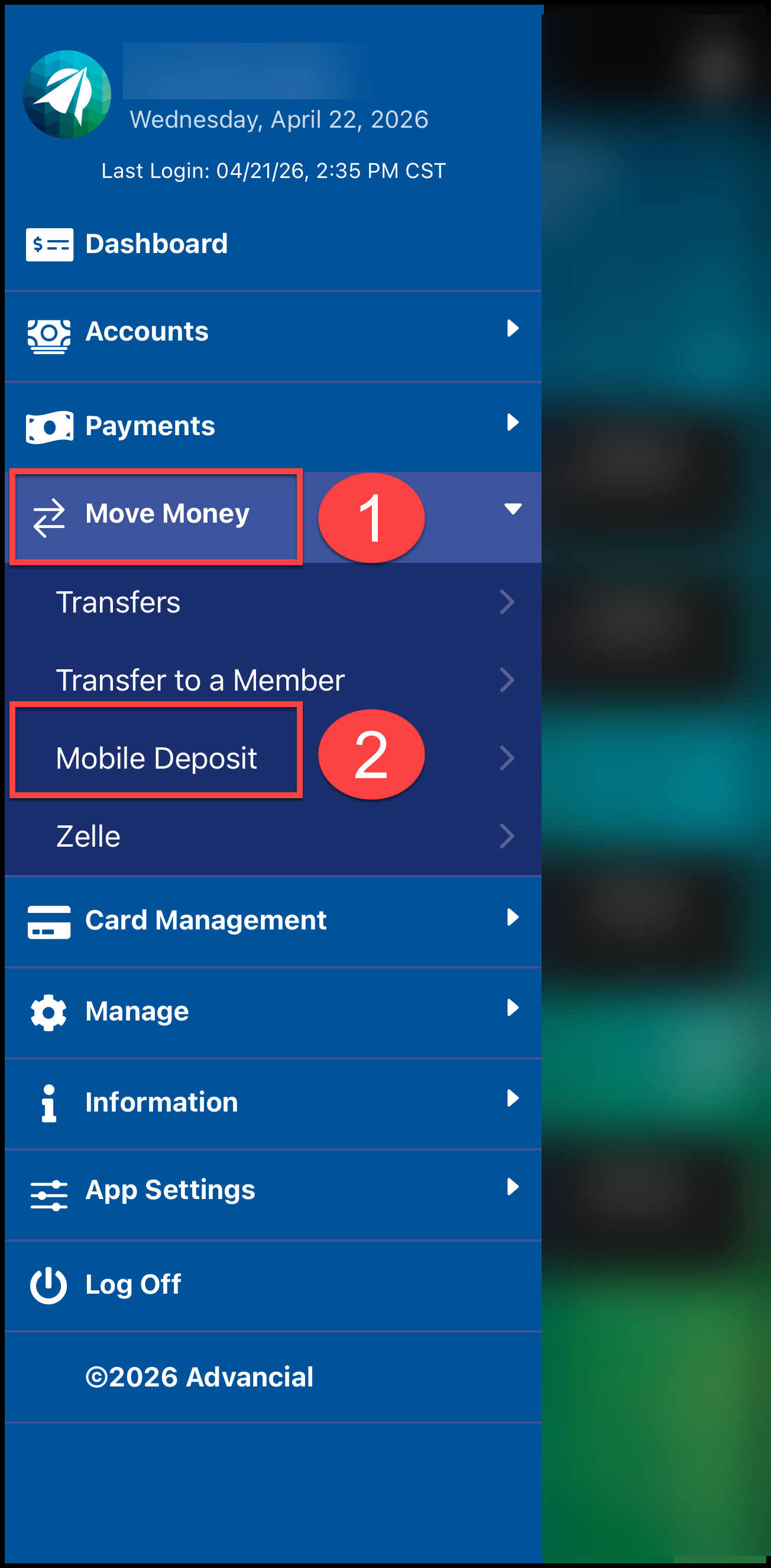
- Navigate to Mobile Deposit:
- Move Money > Mobile Deposit
2
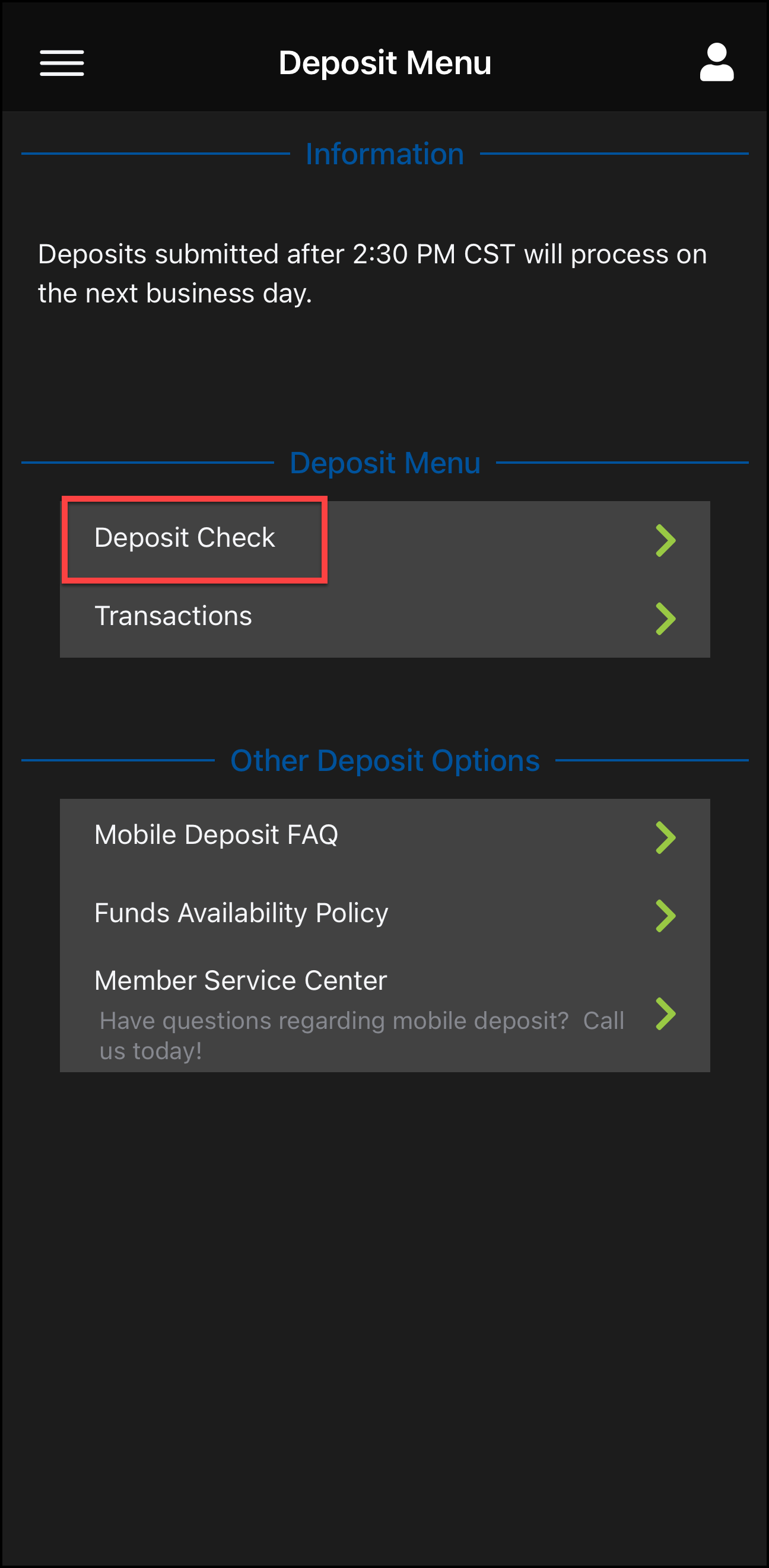
- Select Deposit Check
3
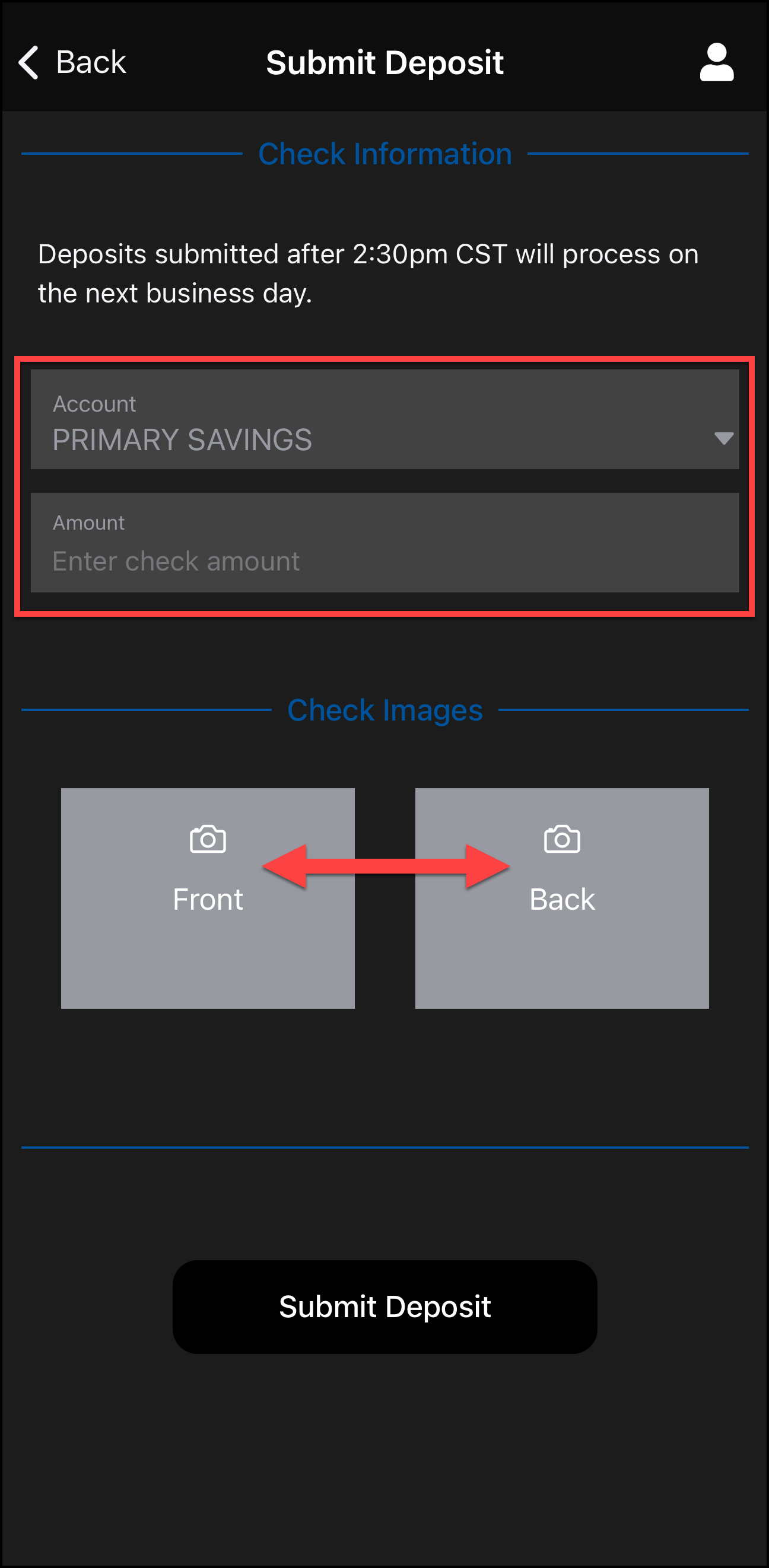
- Select your deposit account
- Enter check amount
- Tap Front to take a photo of the front of the check
- Tap Back to take a photo of the back of the check
4
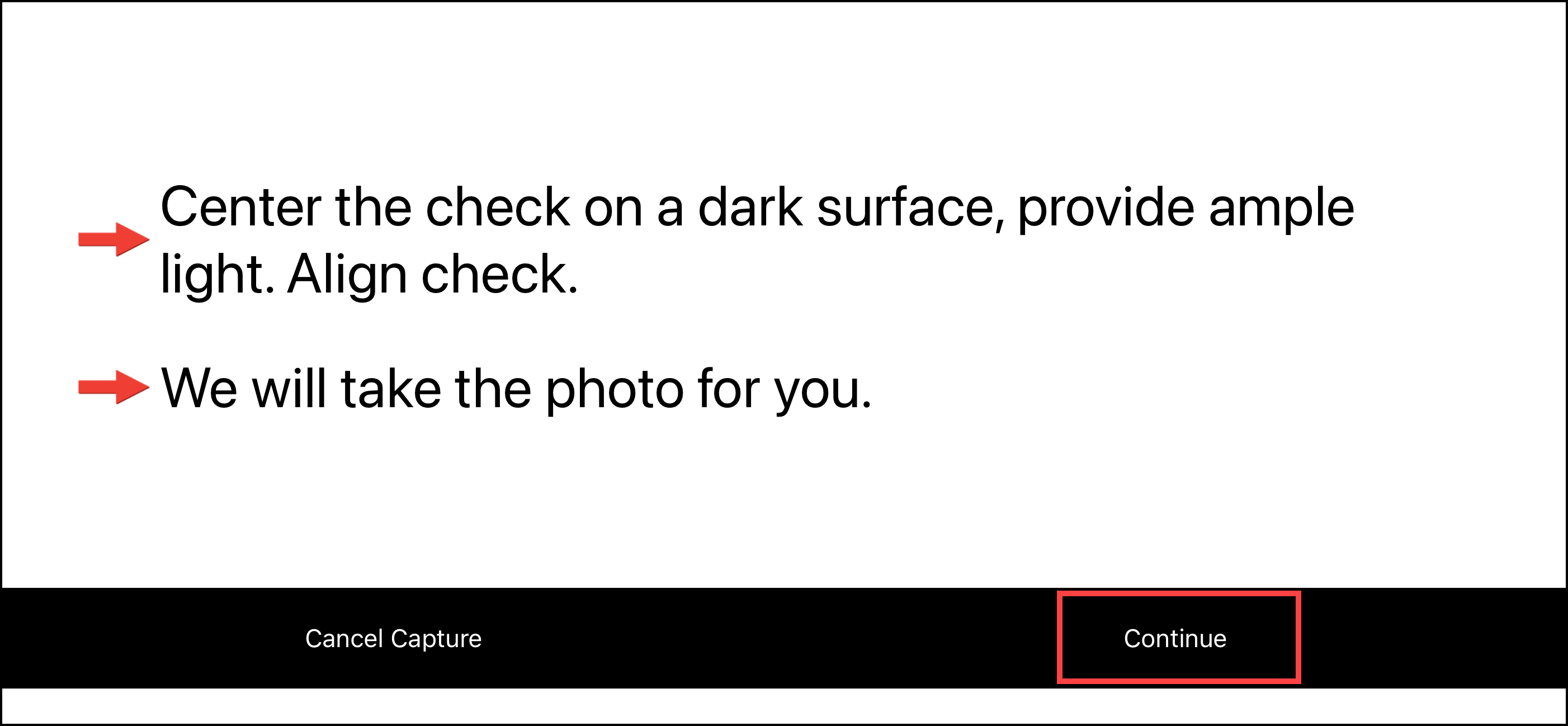
- Place check on a dark, flat surface
- Make sure the area is well lit
- Align the check within the frame
- Ensure the check is signed and endorsed for Mobile Deposit
- Select Continue
5
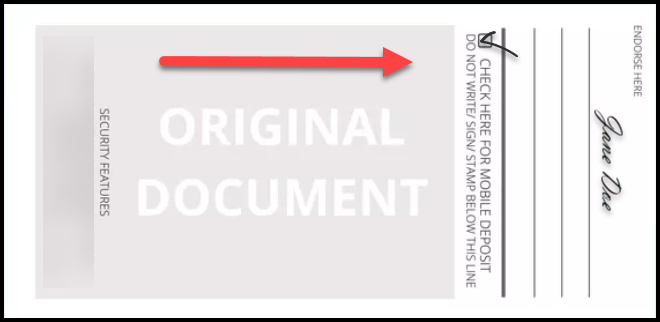
- Sign the back of the check
- Check the box for mobile deposit (if available)
or - Write "For Mobile Deposit Only"
- Make sure your signature is on the right side of the photo
6
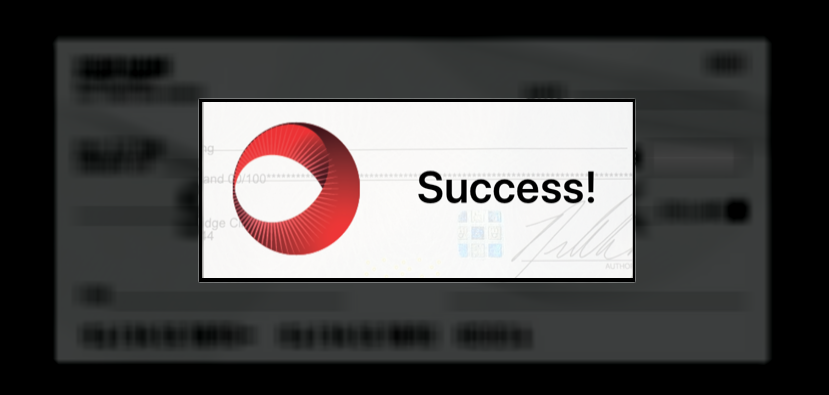
- The Success! screen will indicate your check images were captured successfully
7
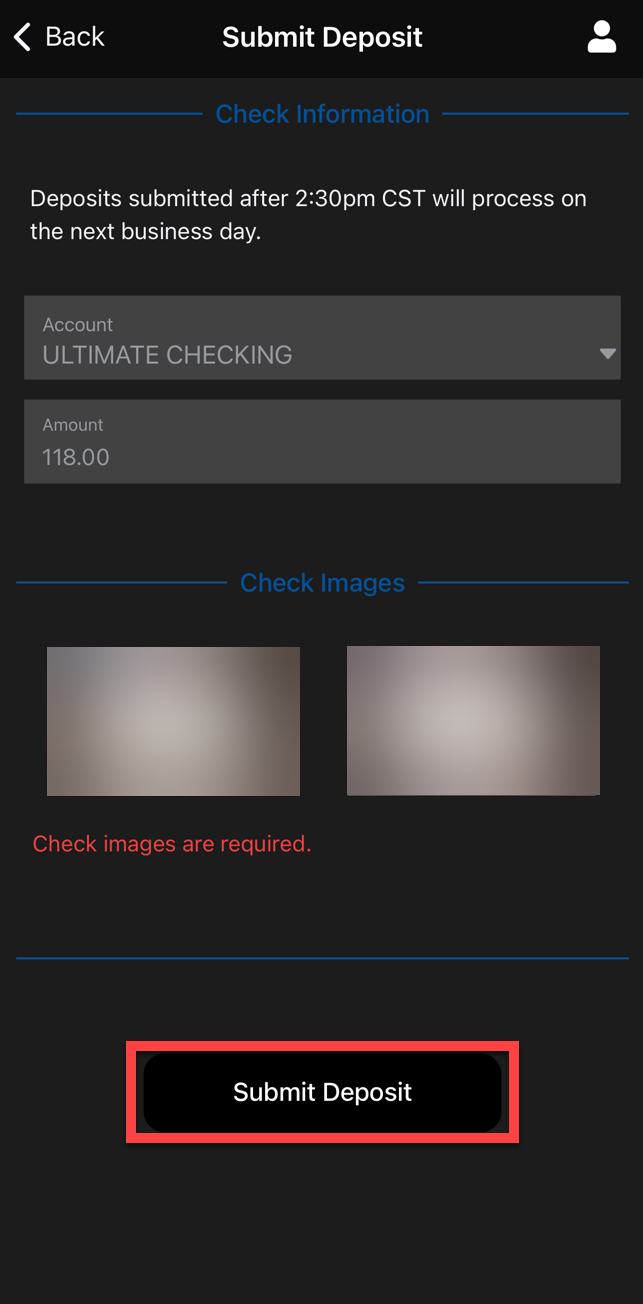
- Verify deposit Account and Amount
- Ensure both front and back images are submitted
- Select Submit Deposit
8
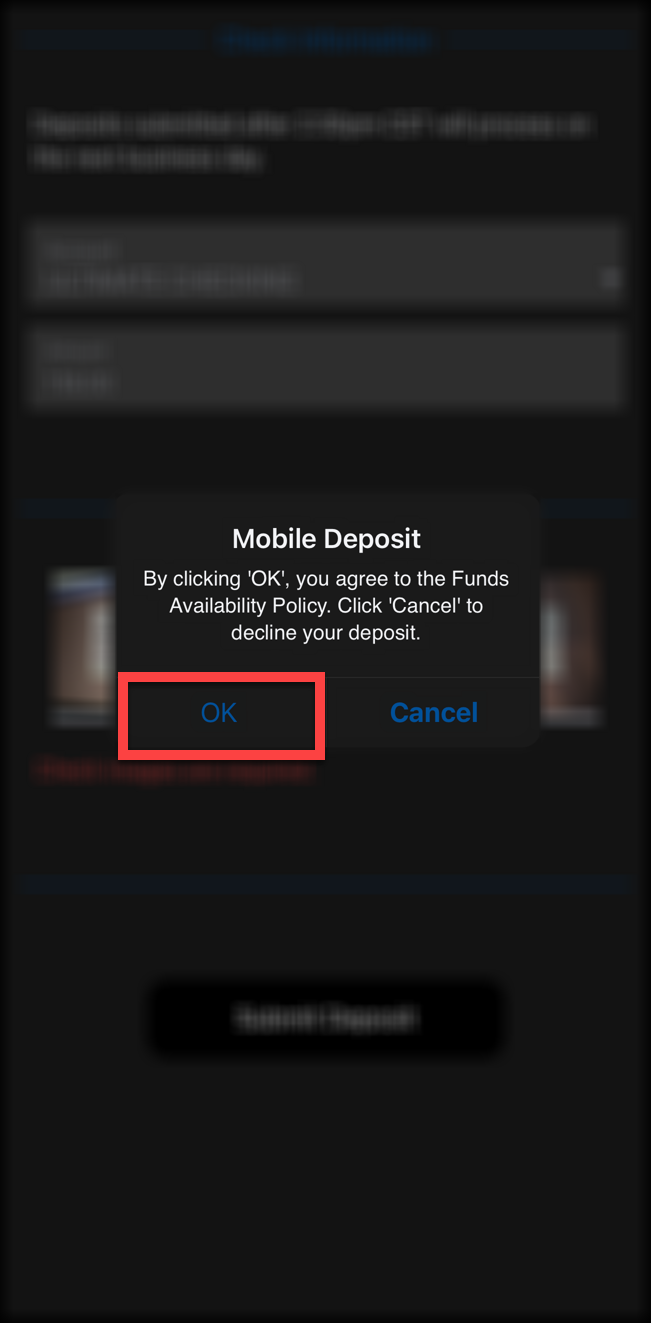
- Select OK to continue with your deposit
- Select Cancel if you need to make any changes
9
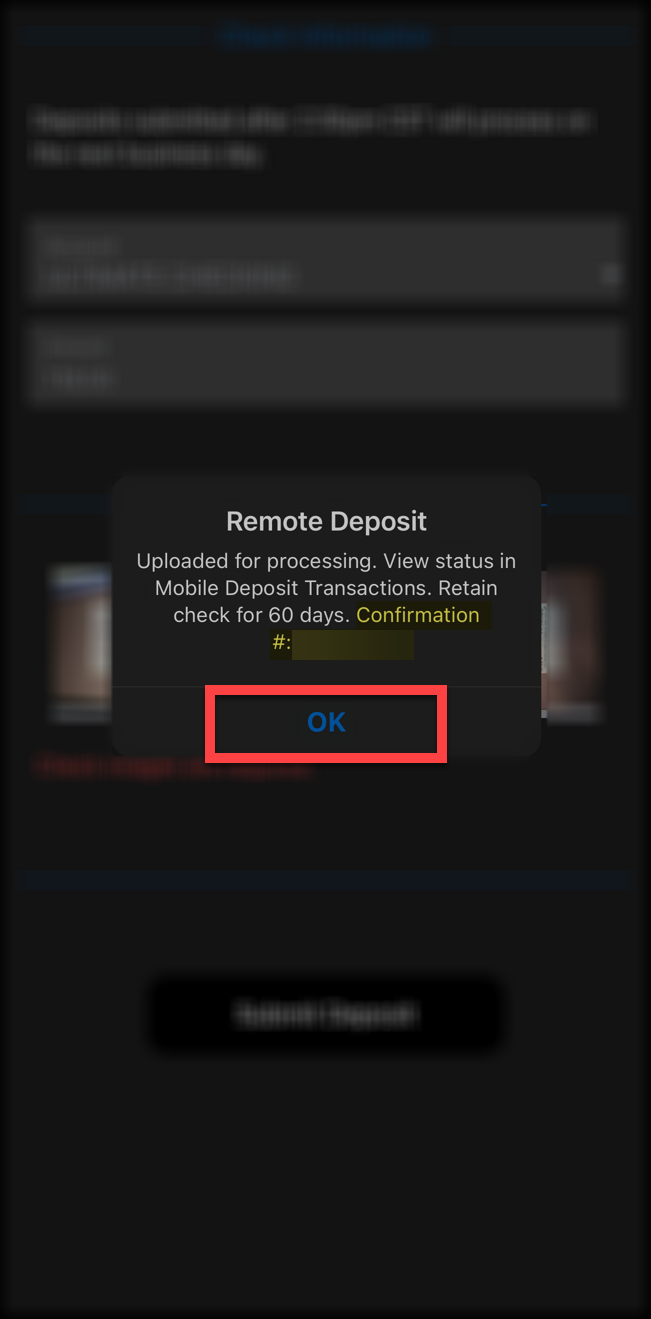
- The confirmation screen will indicate your deposit has been submitted successfully
- A confirmation number will be provided
- Select OK
10
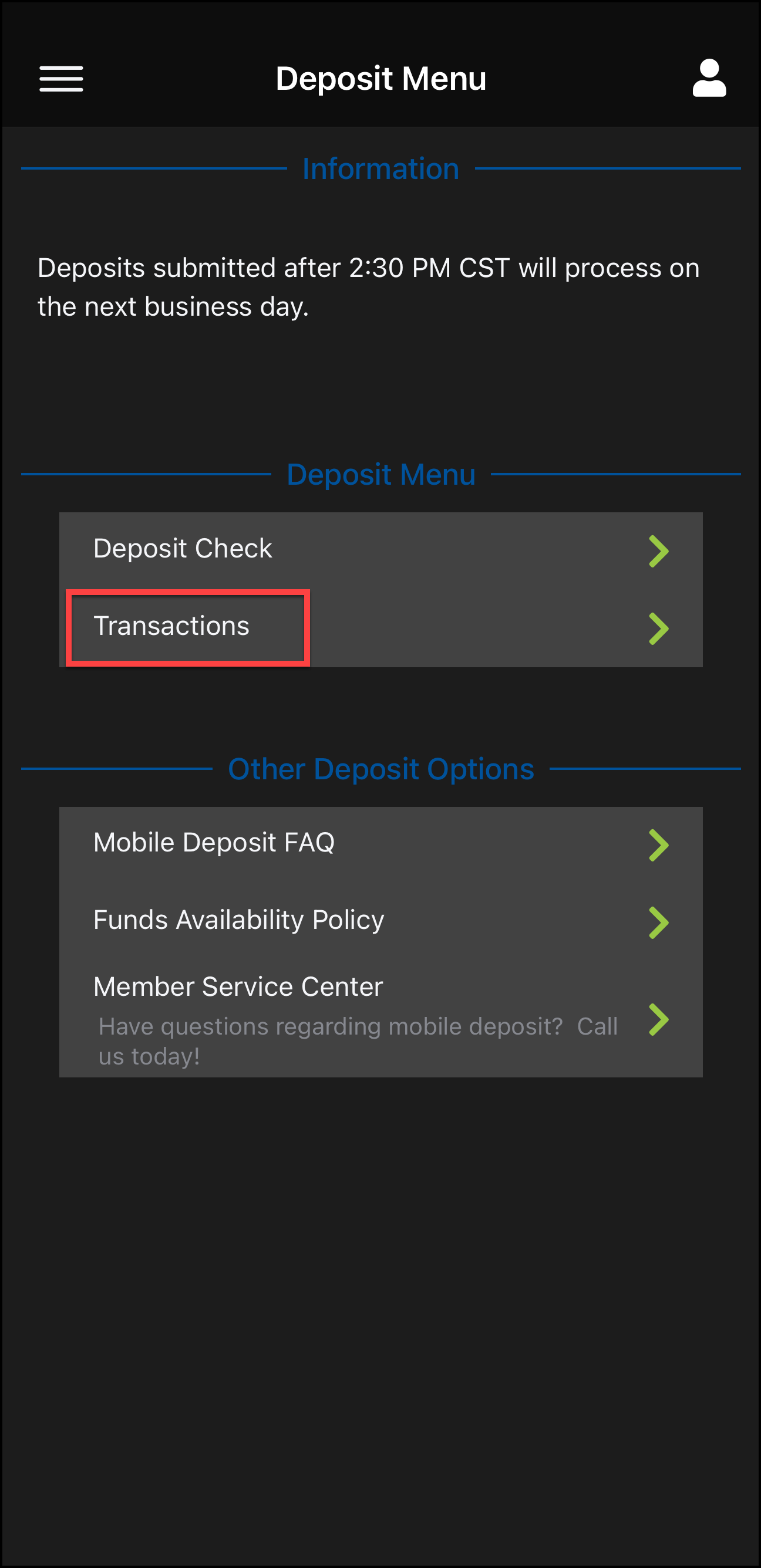
- To view your mobile deposits and status updates, navigate to Transactions under the Deposit Menu