Make a One-Time Loan Payment

×
1
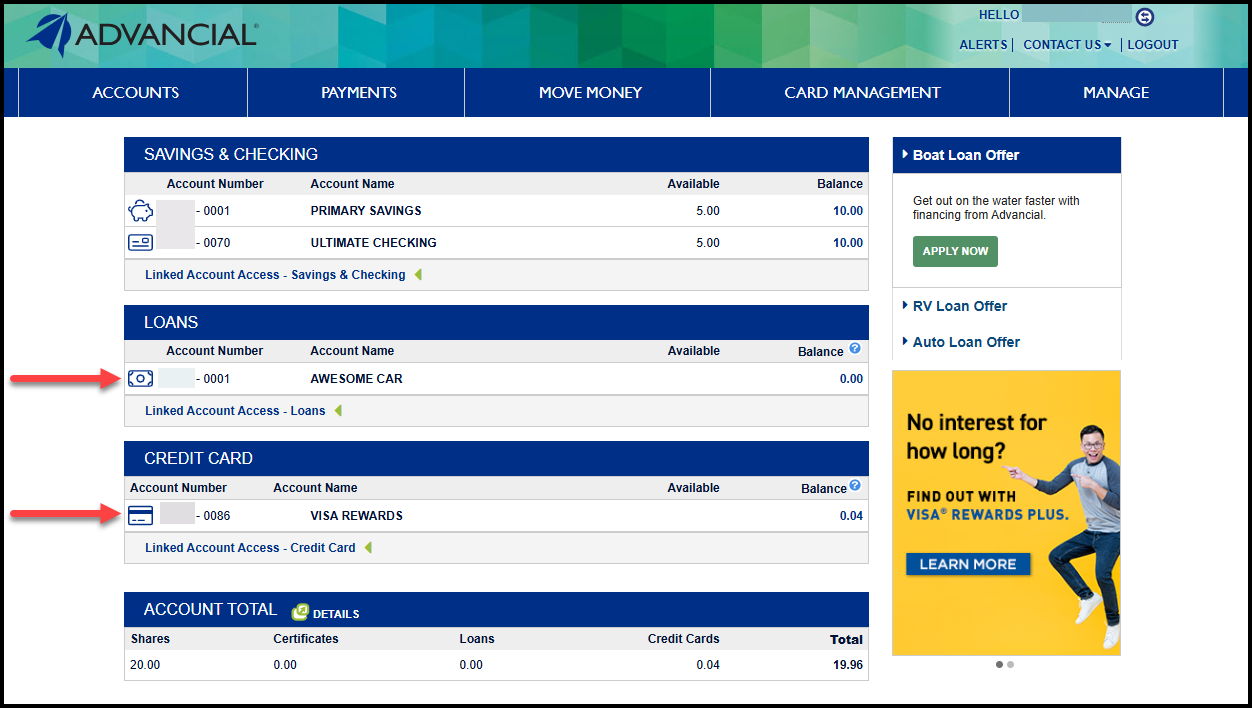
- Log in to cuAnywhere® Online Banking
- Select your loan account
2
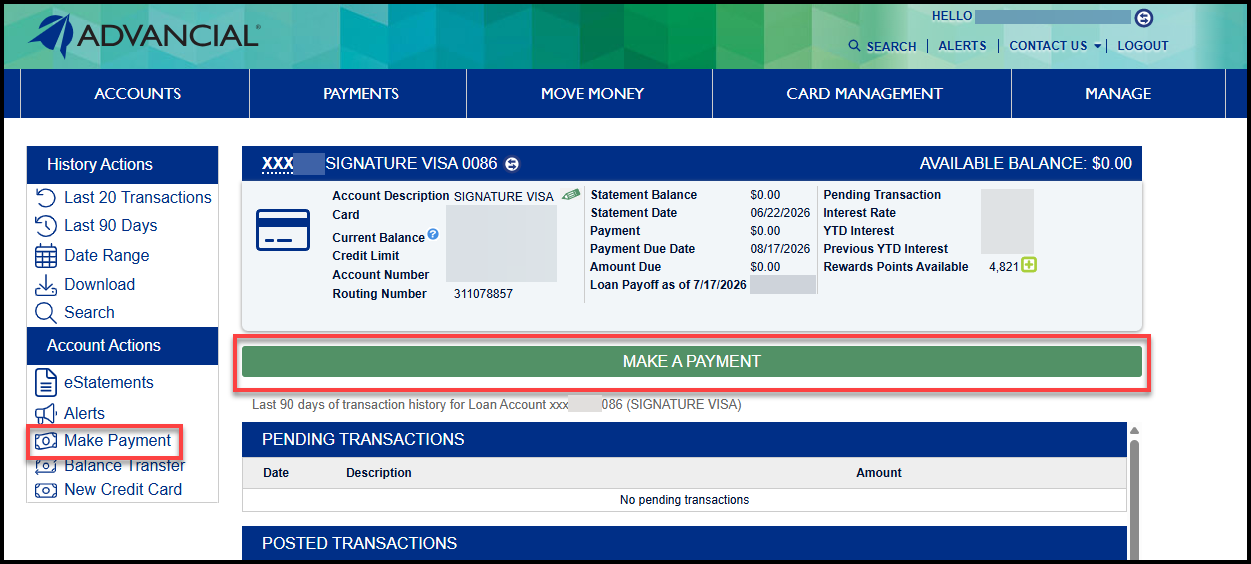
- Select the green Make A Payment button
or - Select the Make Payment option from the left menu
3
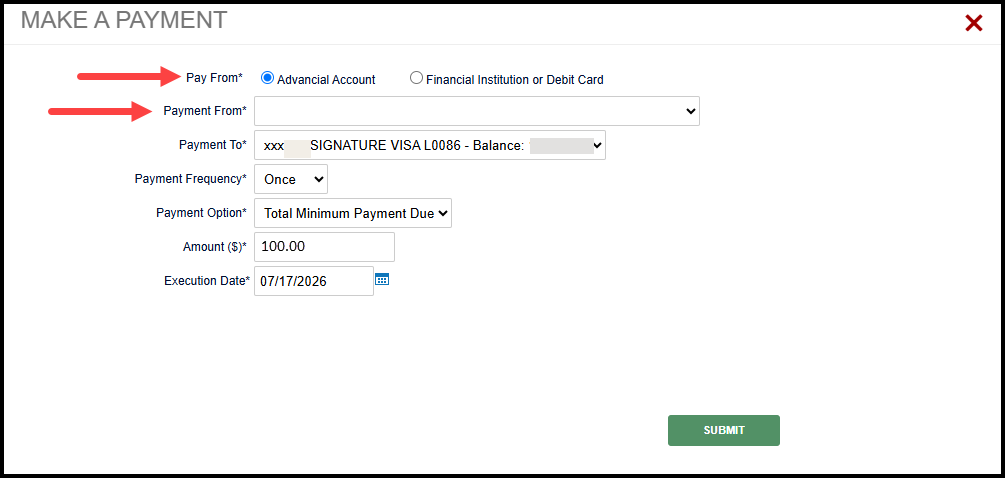
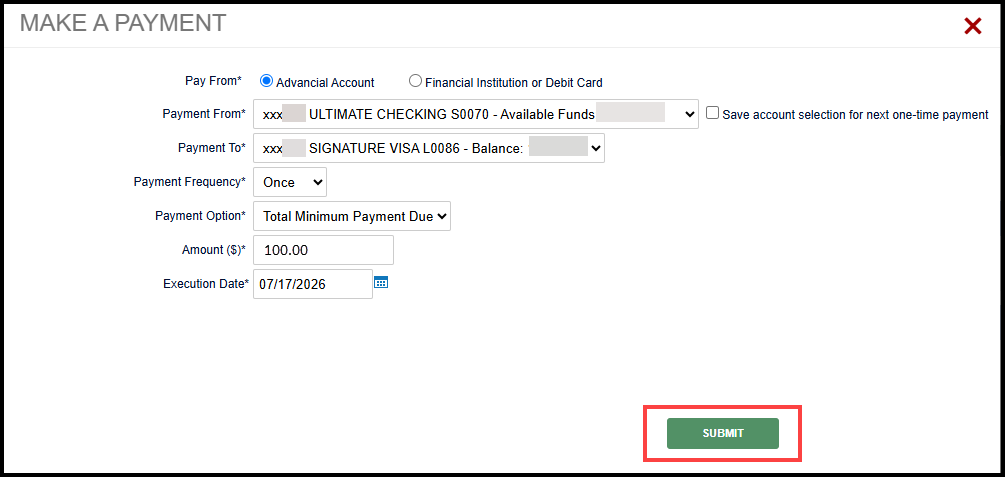
- Select whether you would like to pay from an Advancial Account, or an External Financial Institution or Debit Card
- Use the Payment From drop-down menu to select the account you would like to use
- The remaining payment information will populate automatically
4
- Review the payment details and make any necessary changes
- Select Submit
5
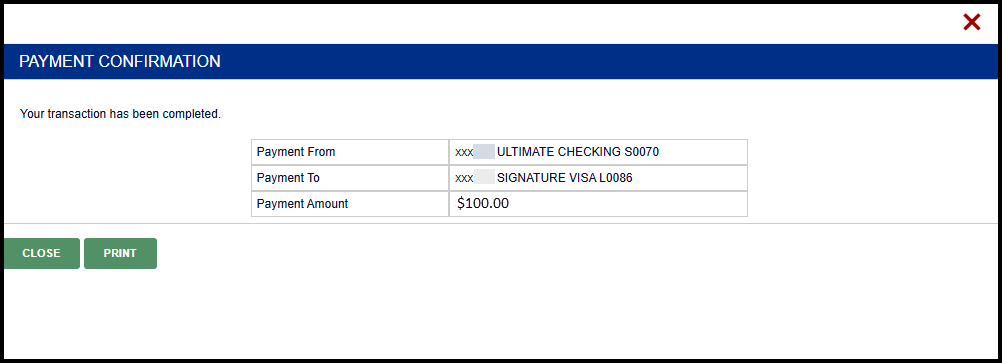
- A confirmation screen appears, indicating your one-time payment was successfully submitted
6
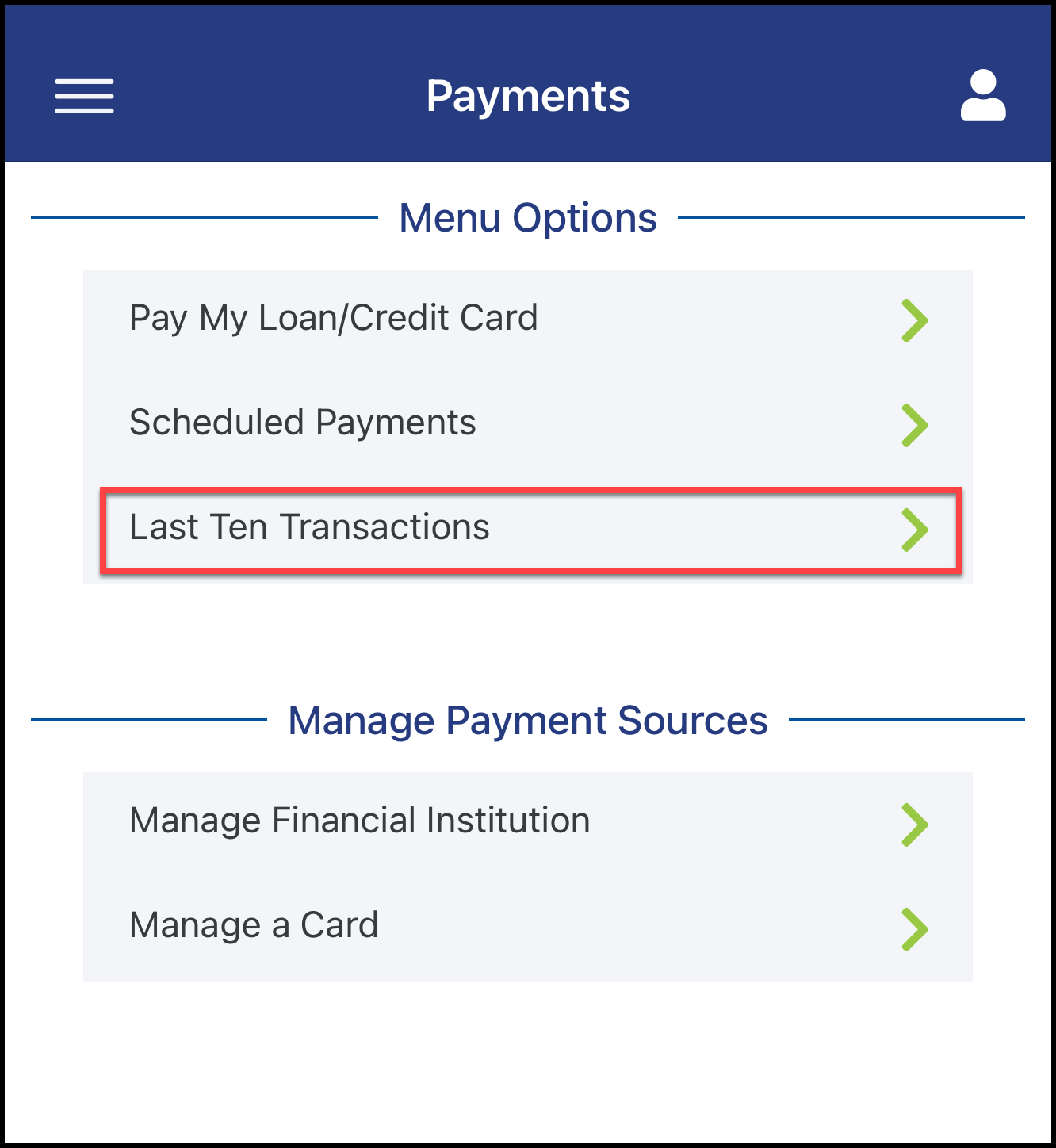
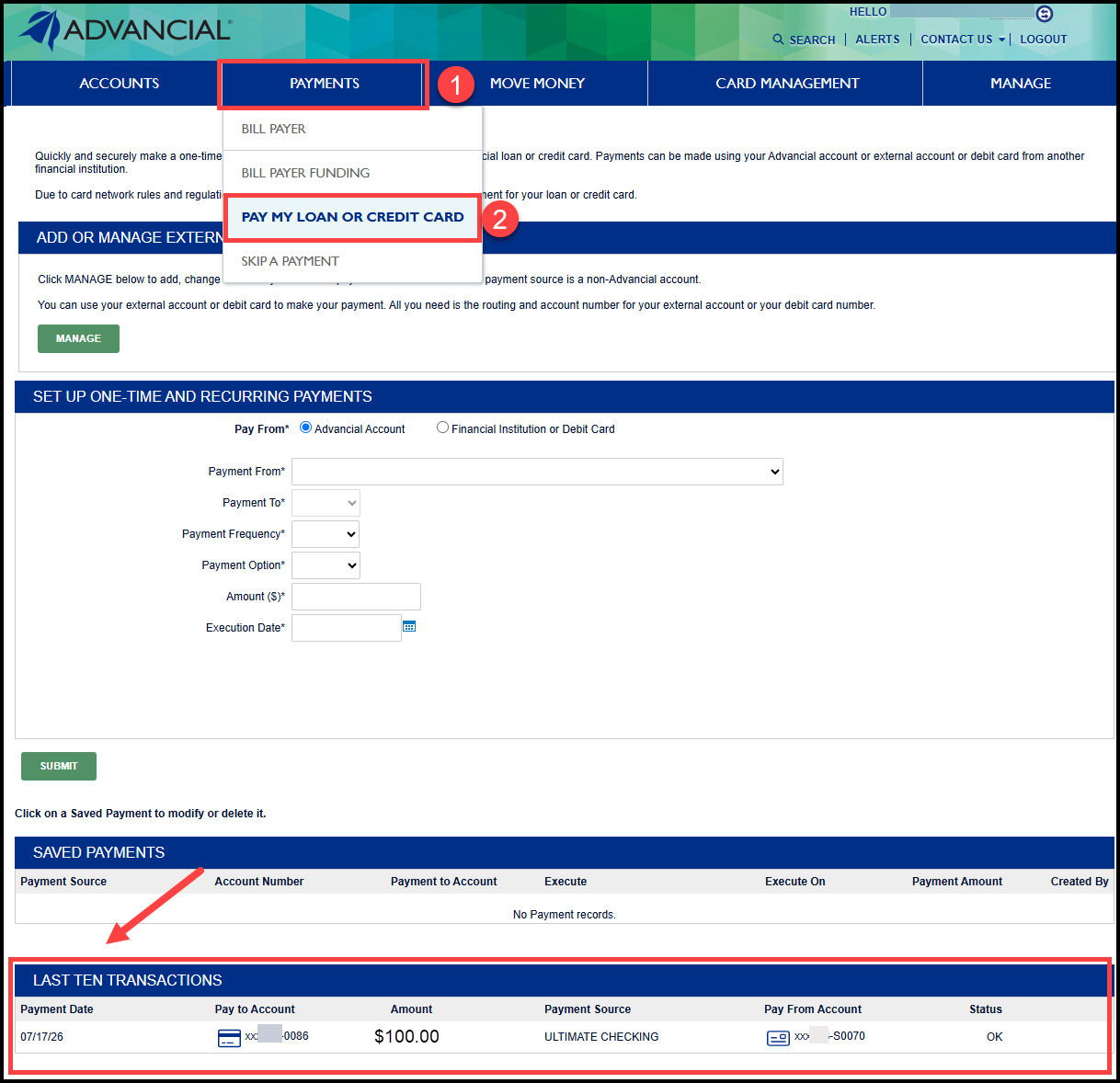
- To view your recent payments, navigate to Pay My Loan or Credit Card:
- Payments > Pay My Loan or Credit Card
- Your recent payments will be displayed under Last Ten Transactions
1
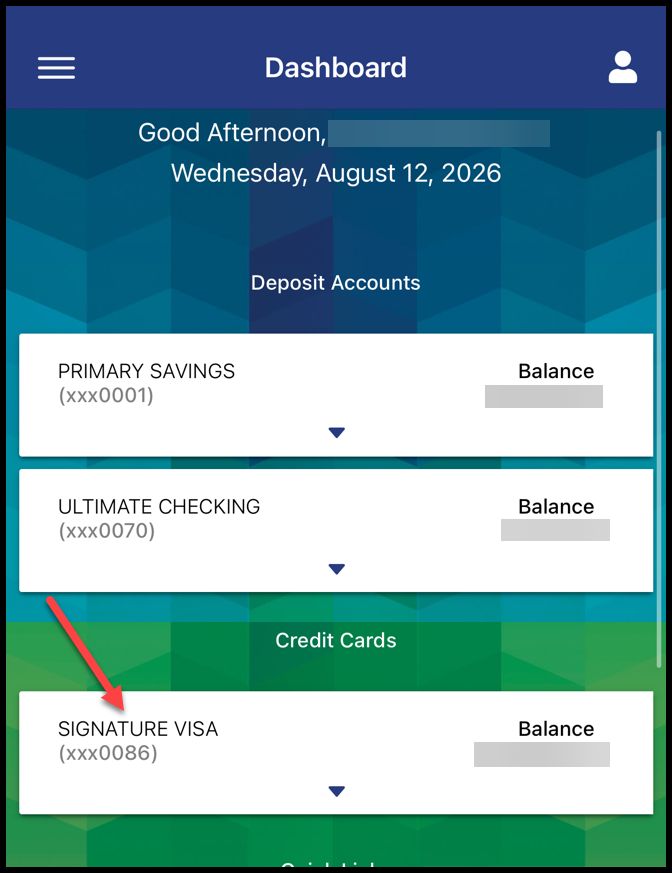
- Log in to the Advancial Mobile App
- Select your loan account from the Dashboard
2
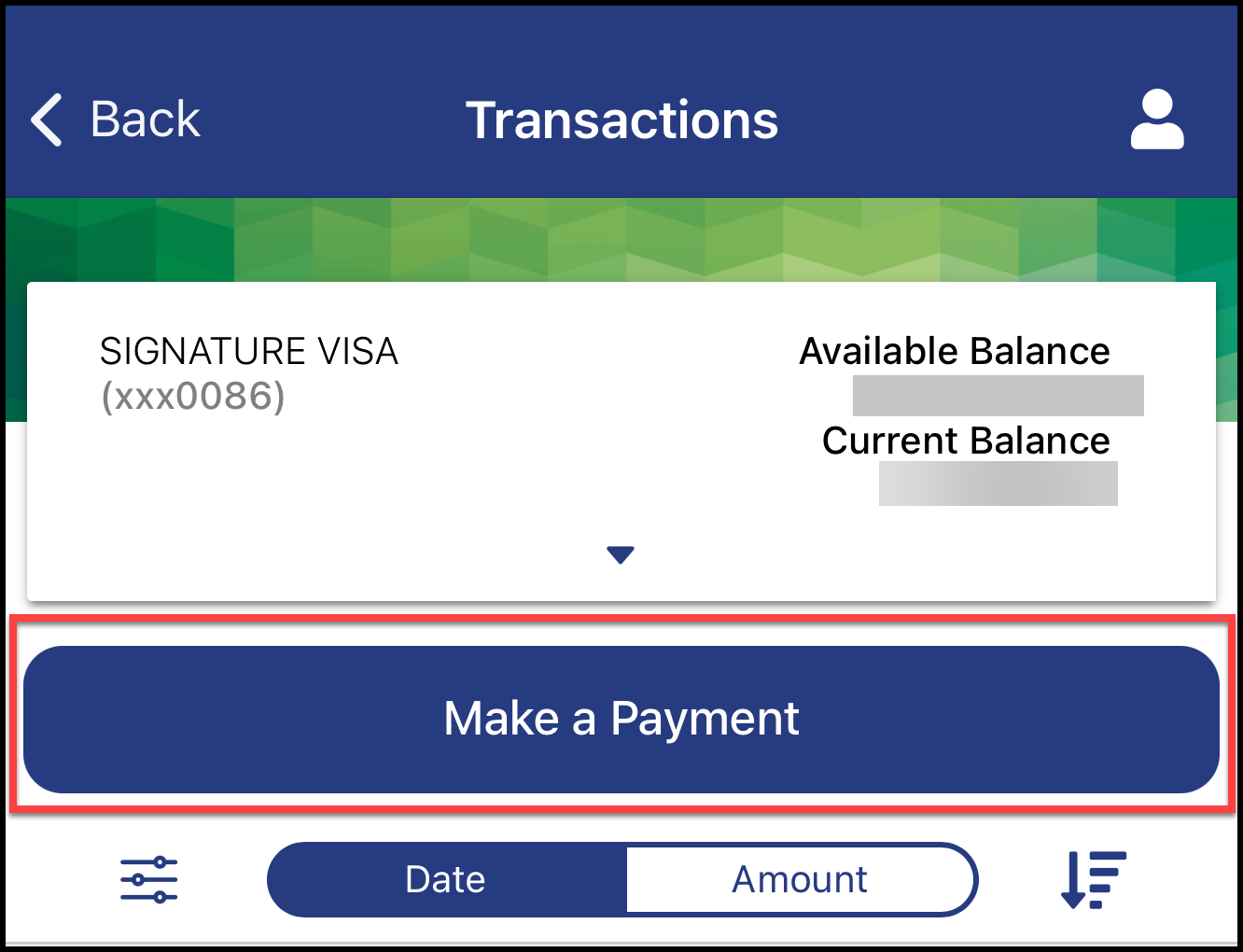
- Select the blue Make a Payment button
3
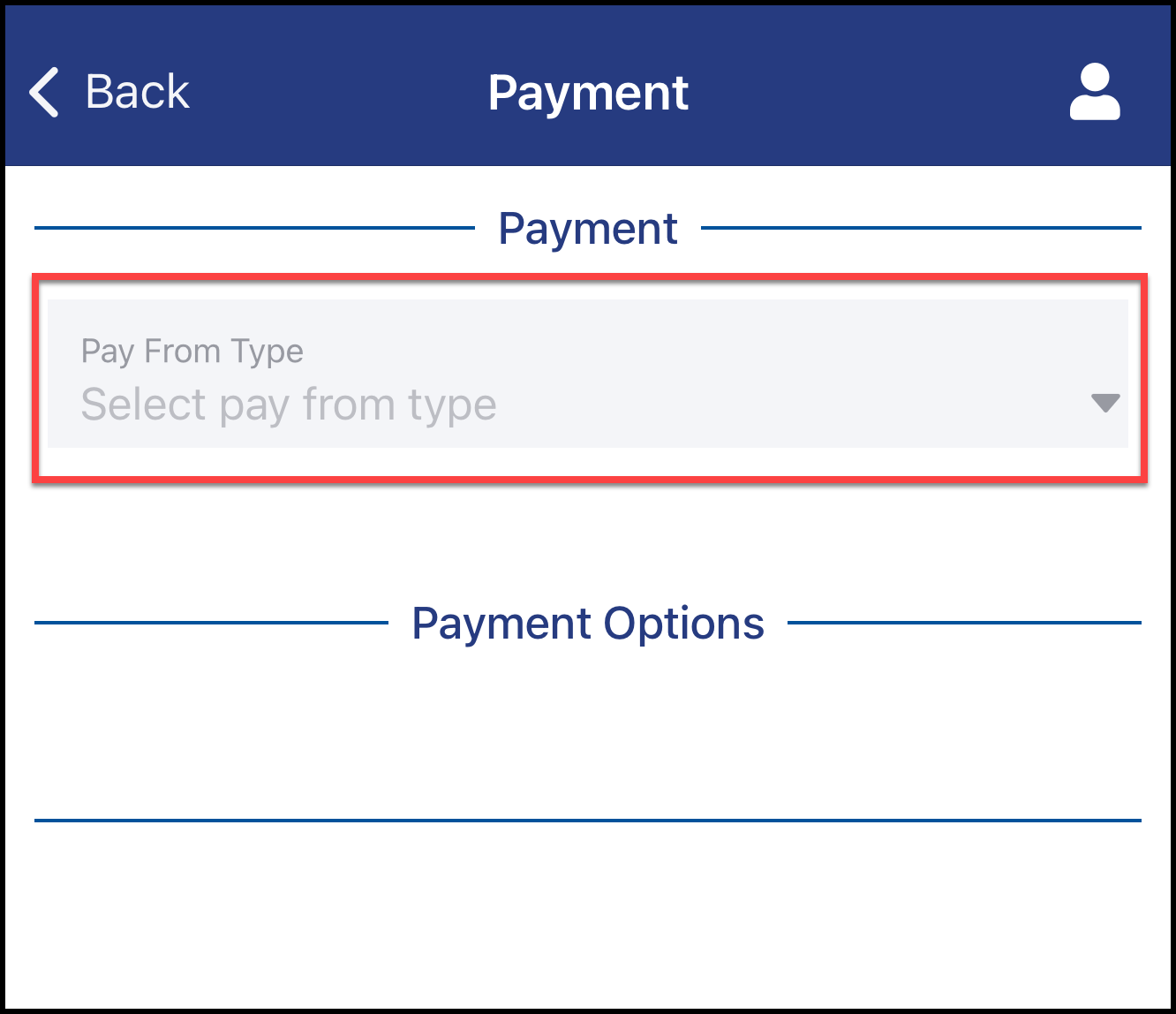
- Select the Pay From Type drop down menu
- Select an Advancial Account
or - Select an Institution or Debit Card to pay from a linked external financial institution
4
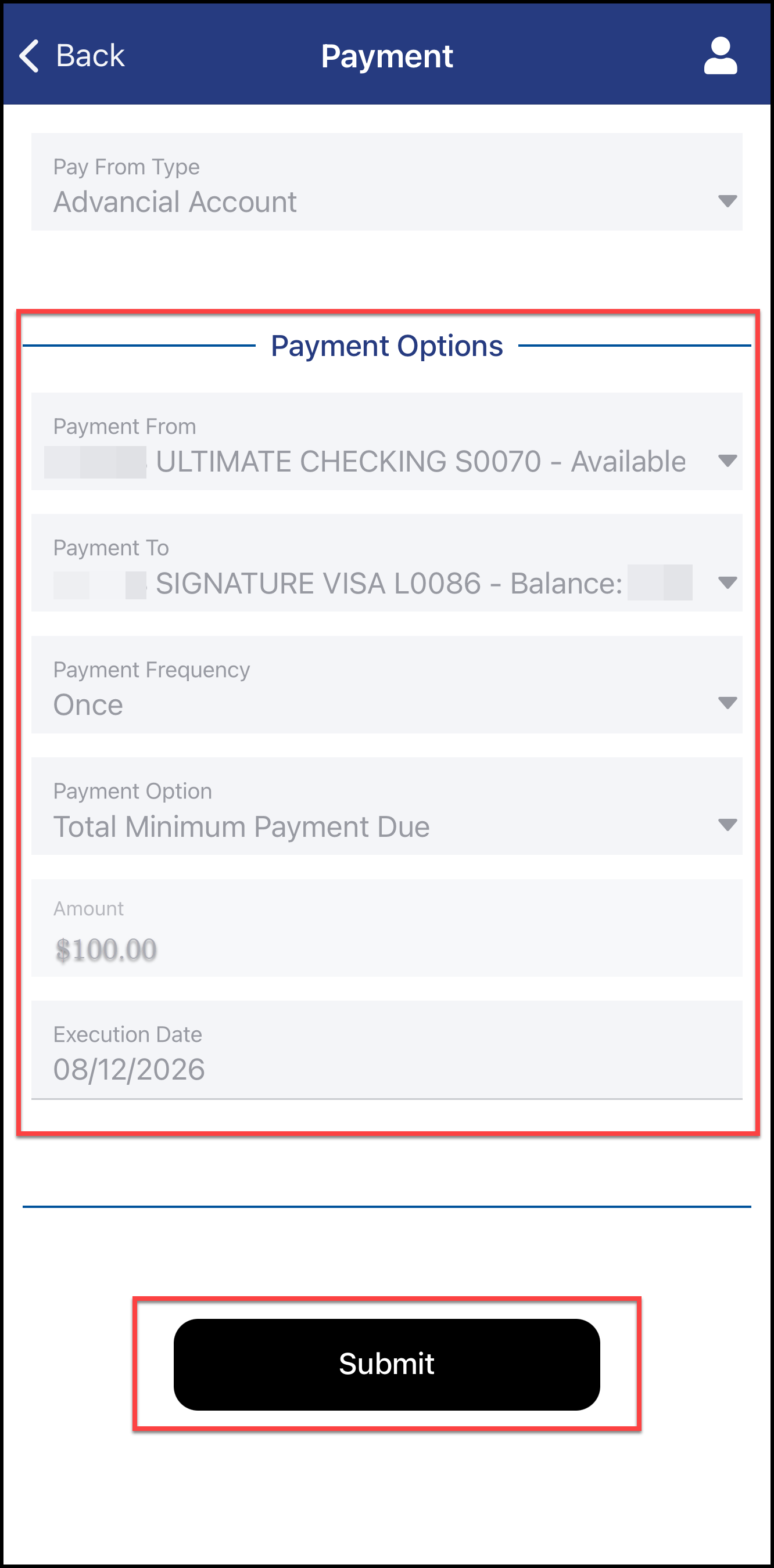
- Select the Payment From account
- Select the Payment To account
- Select Once for the Payment Frequency
- Choose your Payment Option, payment Amount, and Execution Date
- Select Submit
5
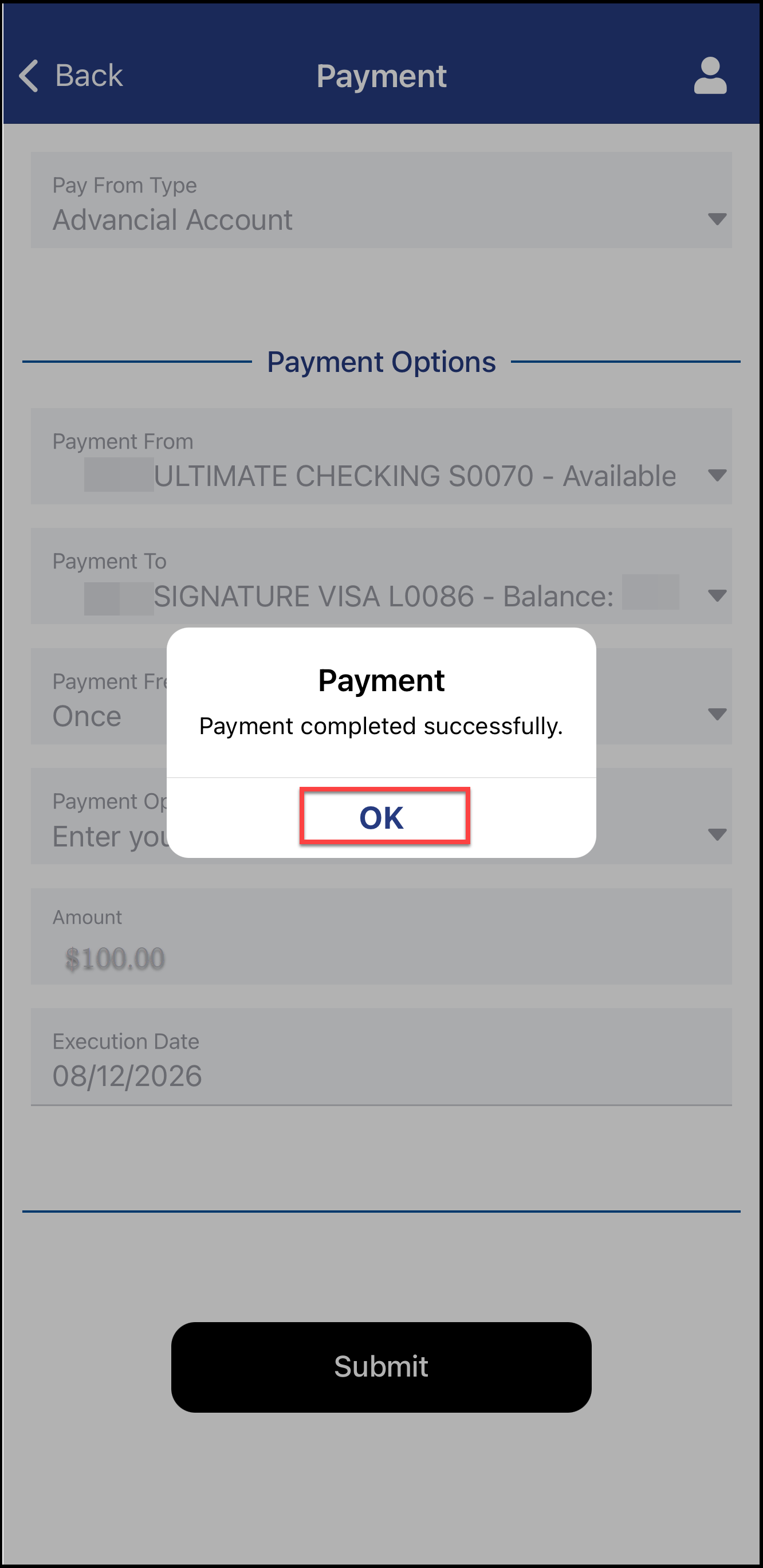
- A confirmation screen appears, indicating the payment was successfully submitted
- Select OK to continue
6
- You will be redirected to the Payments screen
- Select Last Ten Transactions to view your recent loan payments
Note: You can access this screen at any time by navigating to the Payments tab > Pay My Loan/Credit Card