Transfer Money Between Accounts

×
1
- Log in to cuAnywhere® Online Banking
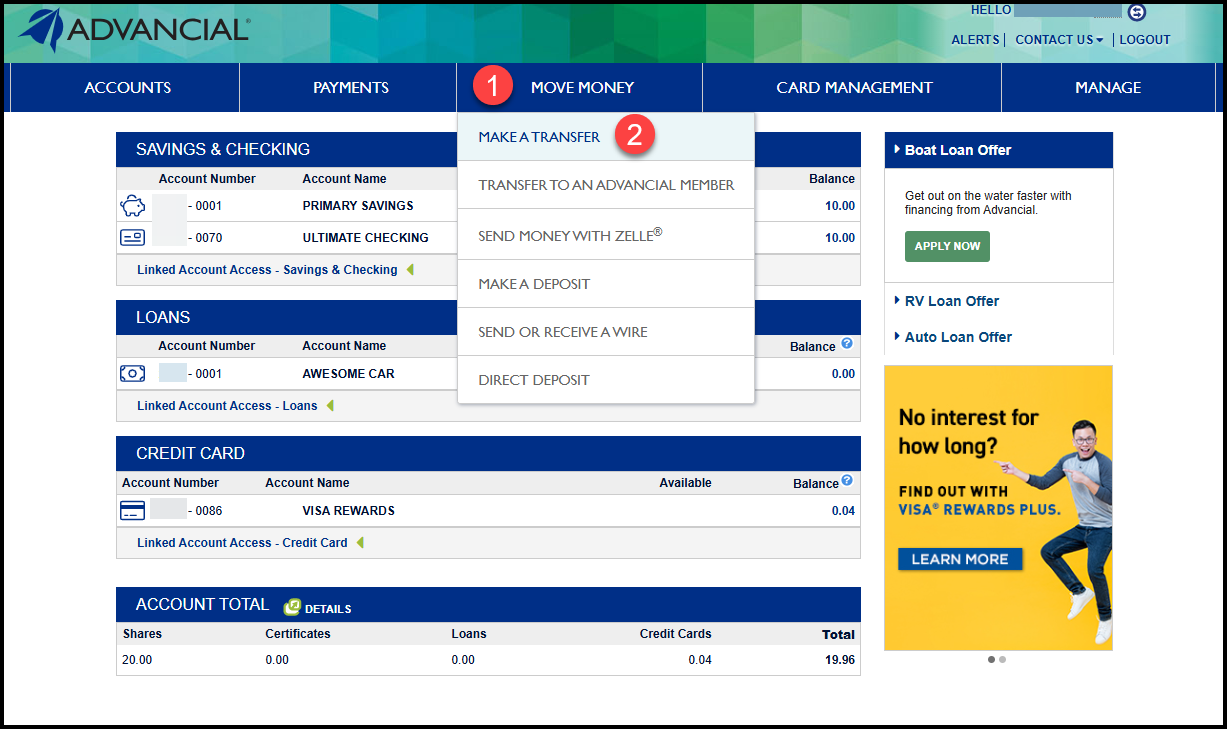
- Navigate to Make a Transfer:
- Move Money > Make A Transfer
2
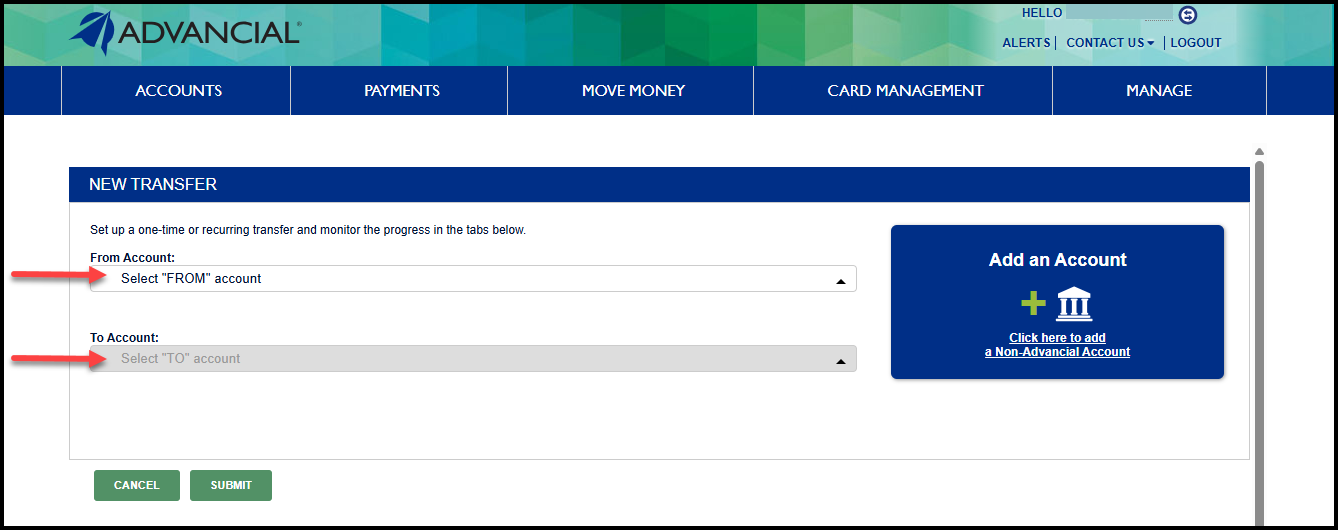
- Select the From Account
- Select the To Account
- Linked non-Advancial accounts will also be available for selection
3
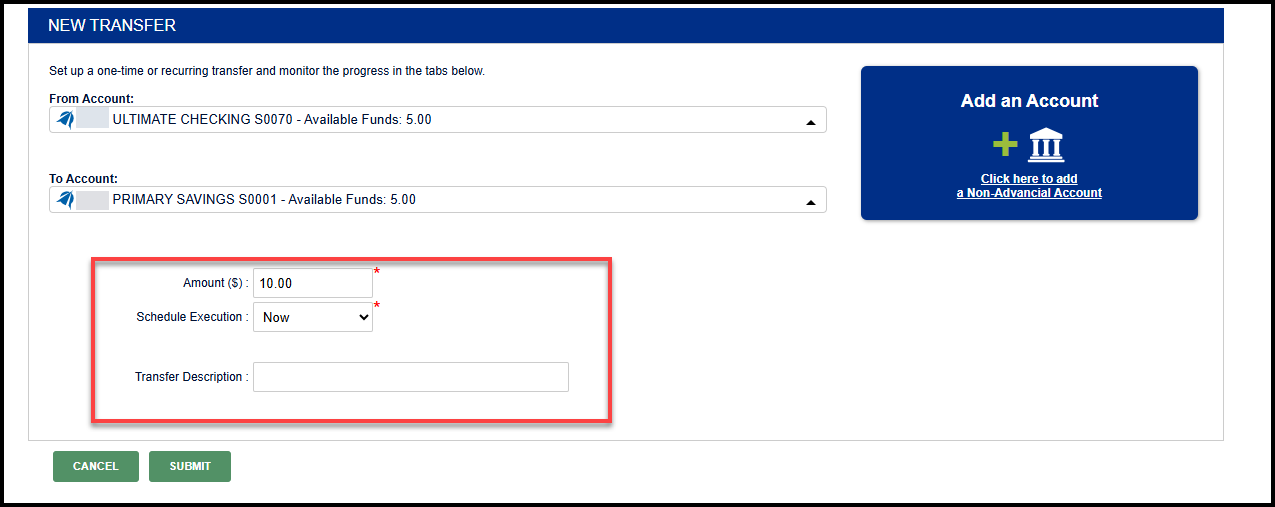
- Enter the transfer amount
- Select when the transfer should occur
- Enter an optional transfer description
Note: If you selected Now under Schedule Execution, click Submit to complete your transfer
4
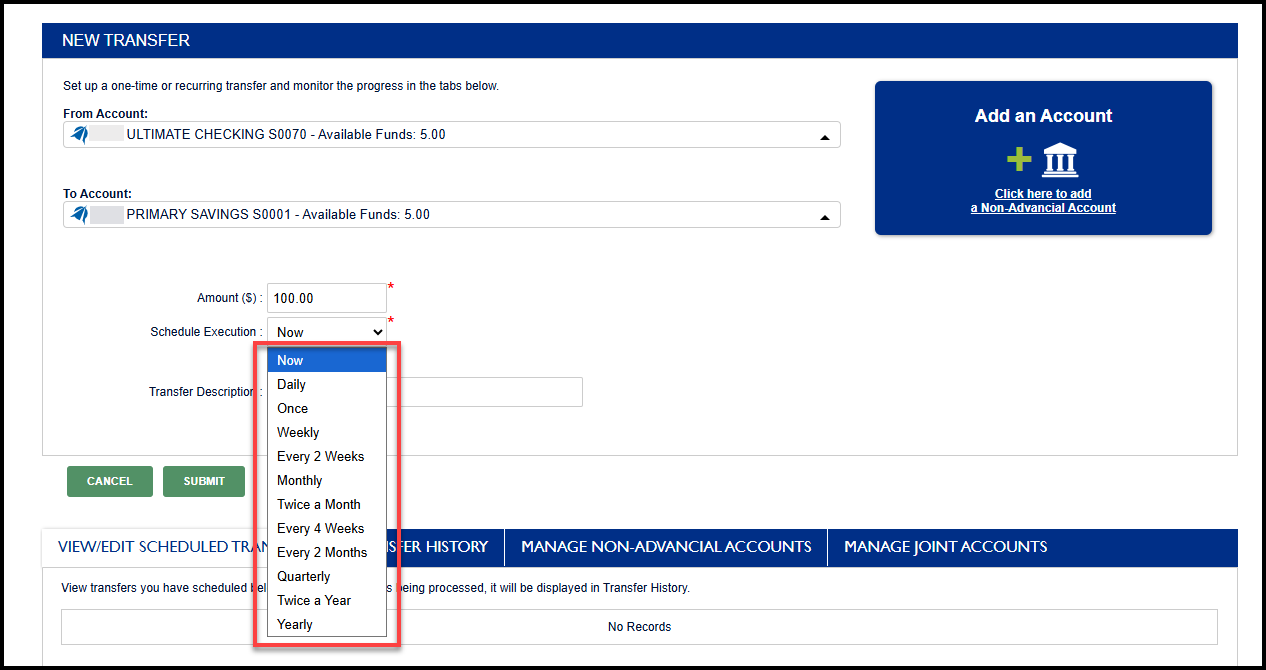
- To schedule a future or recurring transfer, select how often the transfer should occur
5
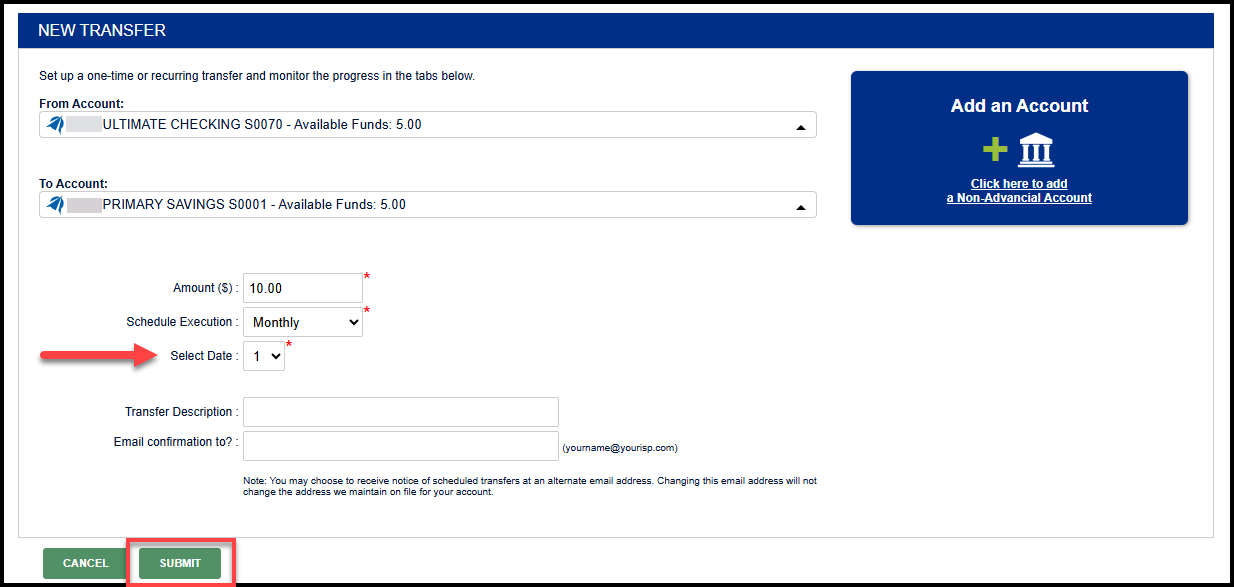
- Select the day the transfer should occur
- Enter an optional email address to receive transfer notifications
- Click Submit
6
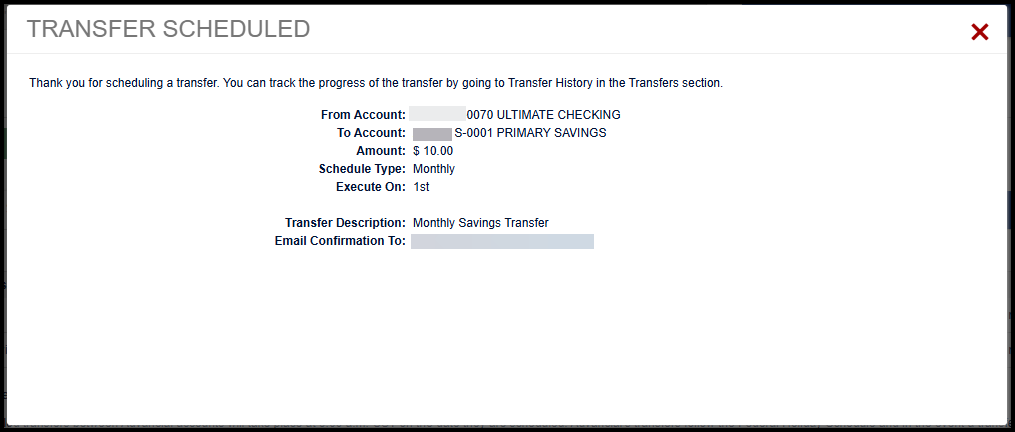
- A confirmation screen appears, indicating the transfer was successfully submitted
7
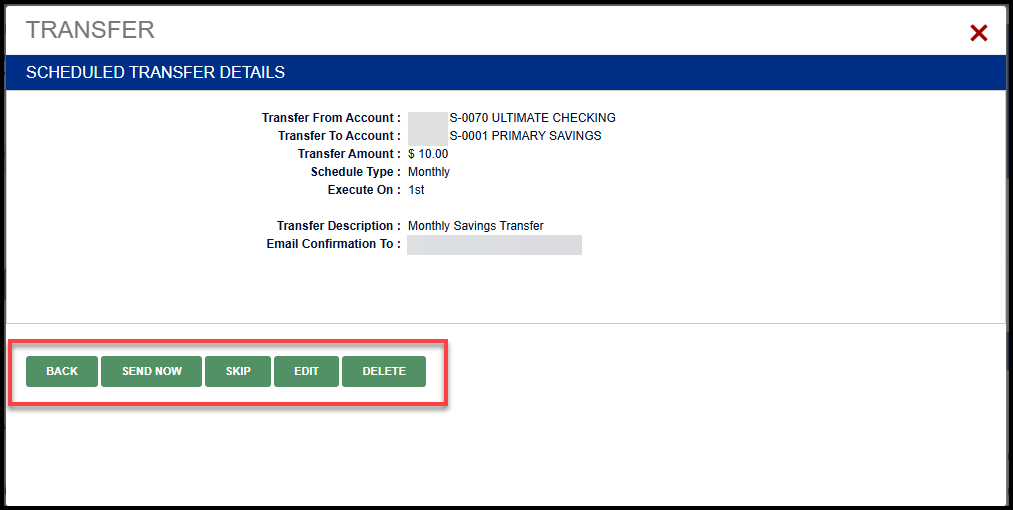
To modify scheduled transfers:
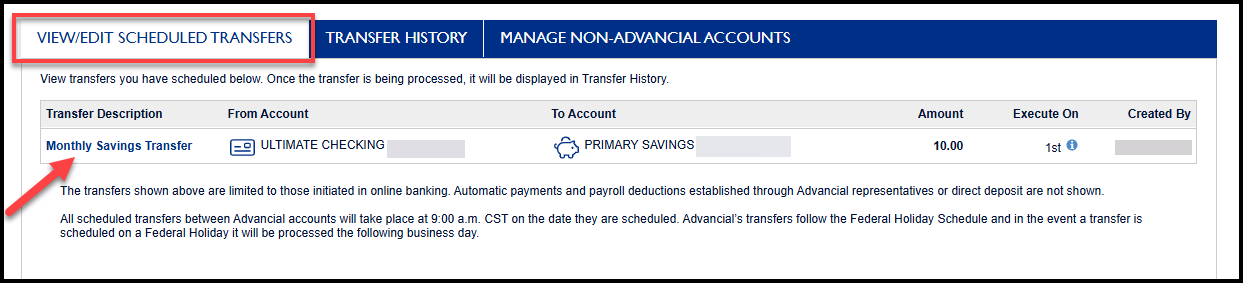
- Select View/Edit Scheduled Transfers
- Select the scheduled transfer you would like to edit
8
- Use the available options to modify the scheduled transfer
1
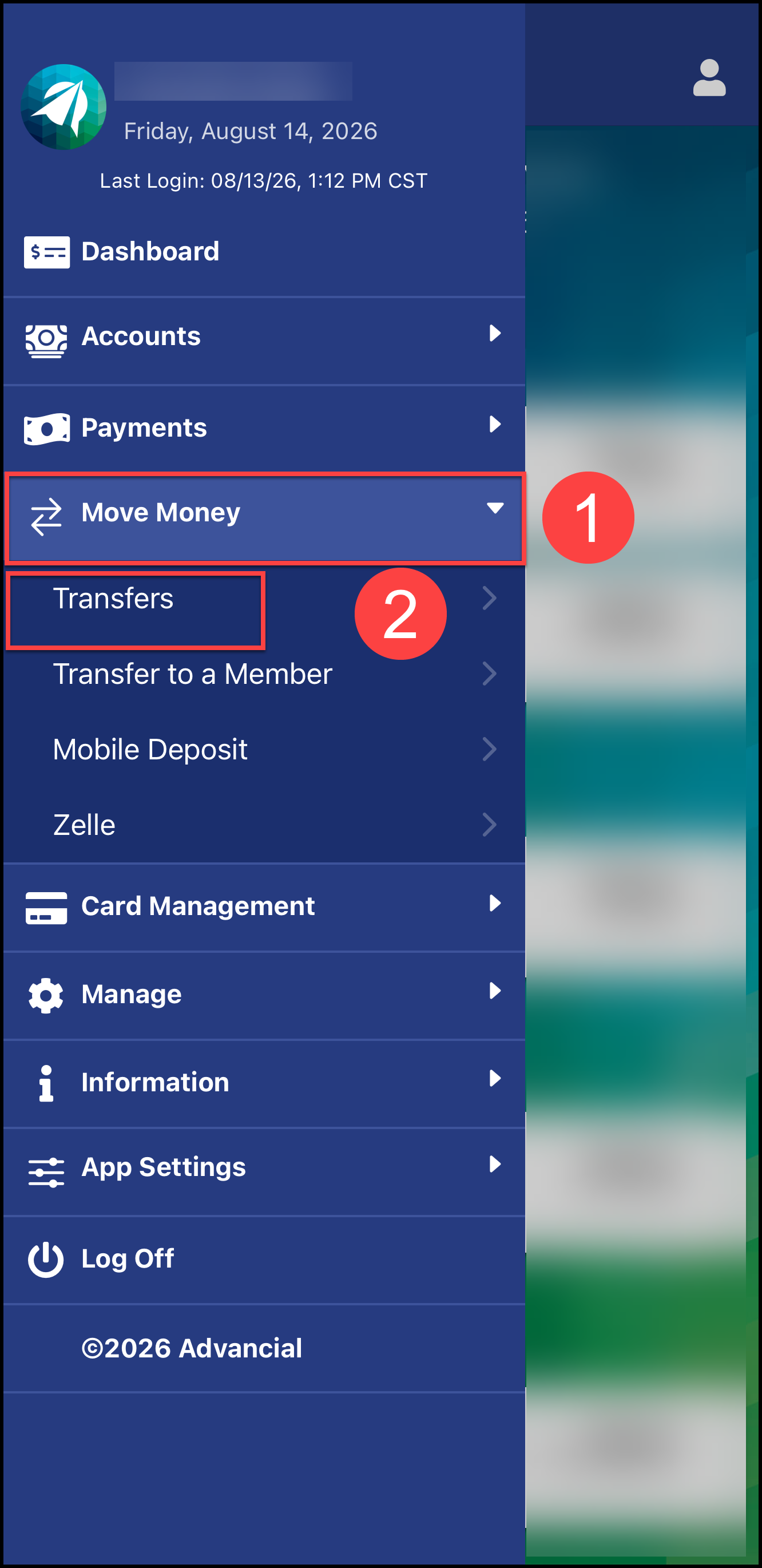
- Log in to the Advancial Mobile App
- Navigate to Transfers
- Move Money > Transfers
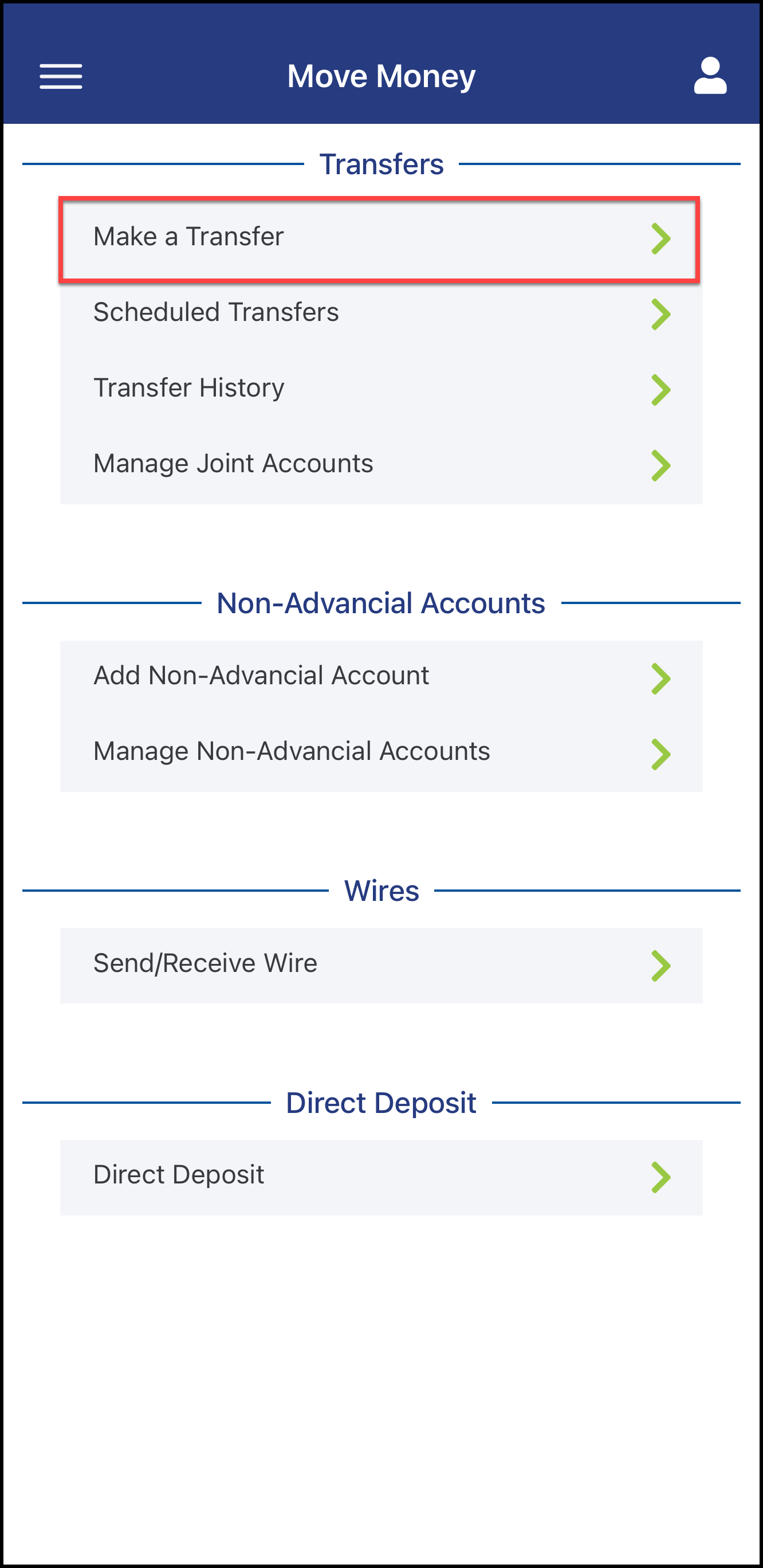
2
- Select Make a Transfer
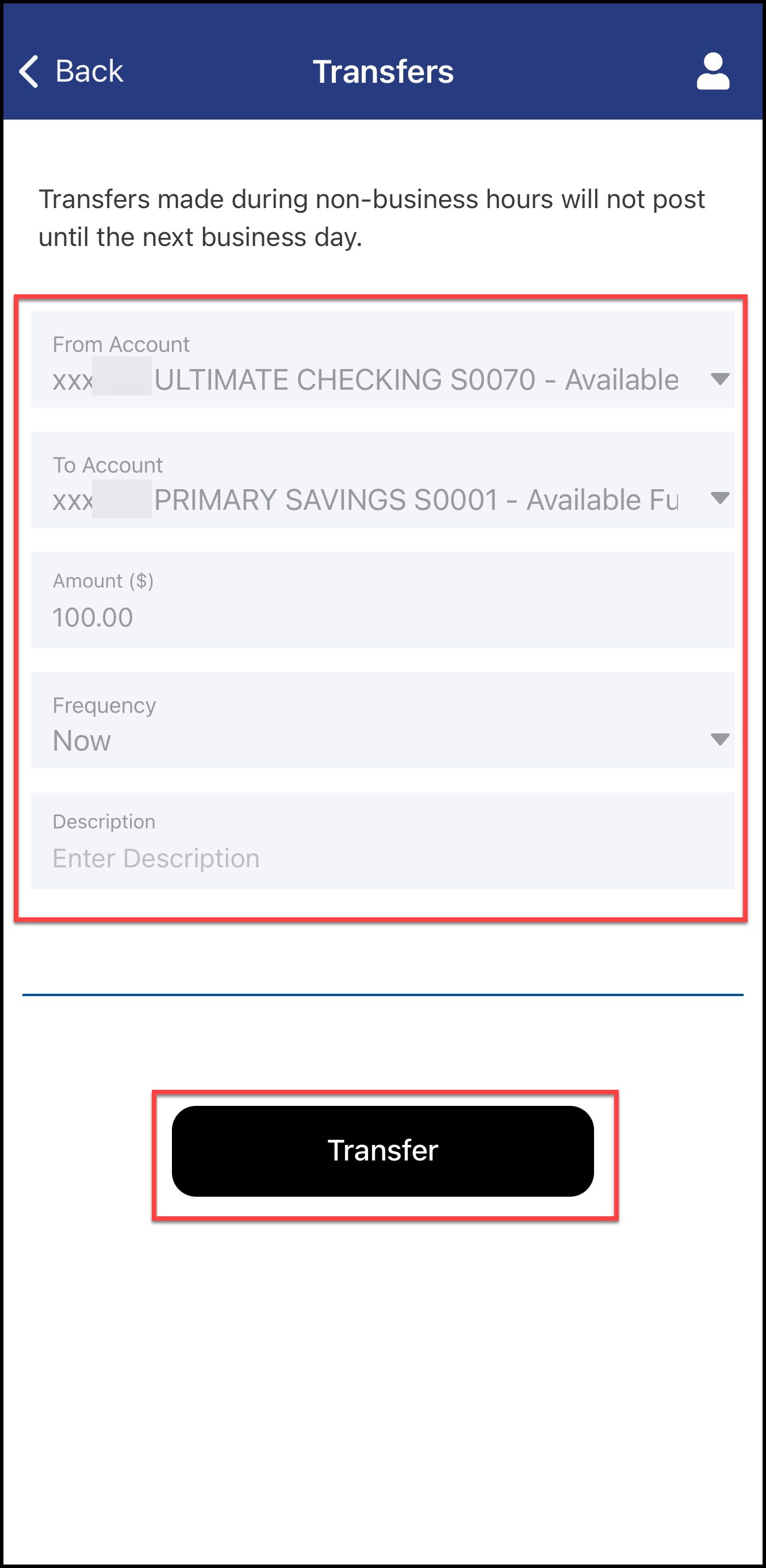
3
- Select the From Account
- Select the To Account
- Linked non-Advancial accounts will also be available for selection
- Enter the Amount of the transfer
- Select the Frequency of the transfer
- Select Transfer when completed
4
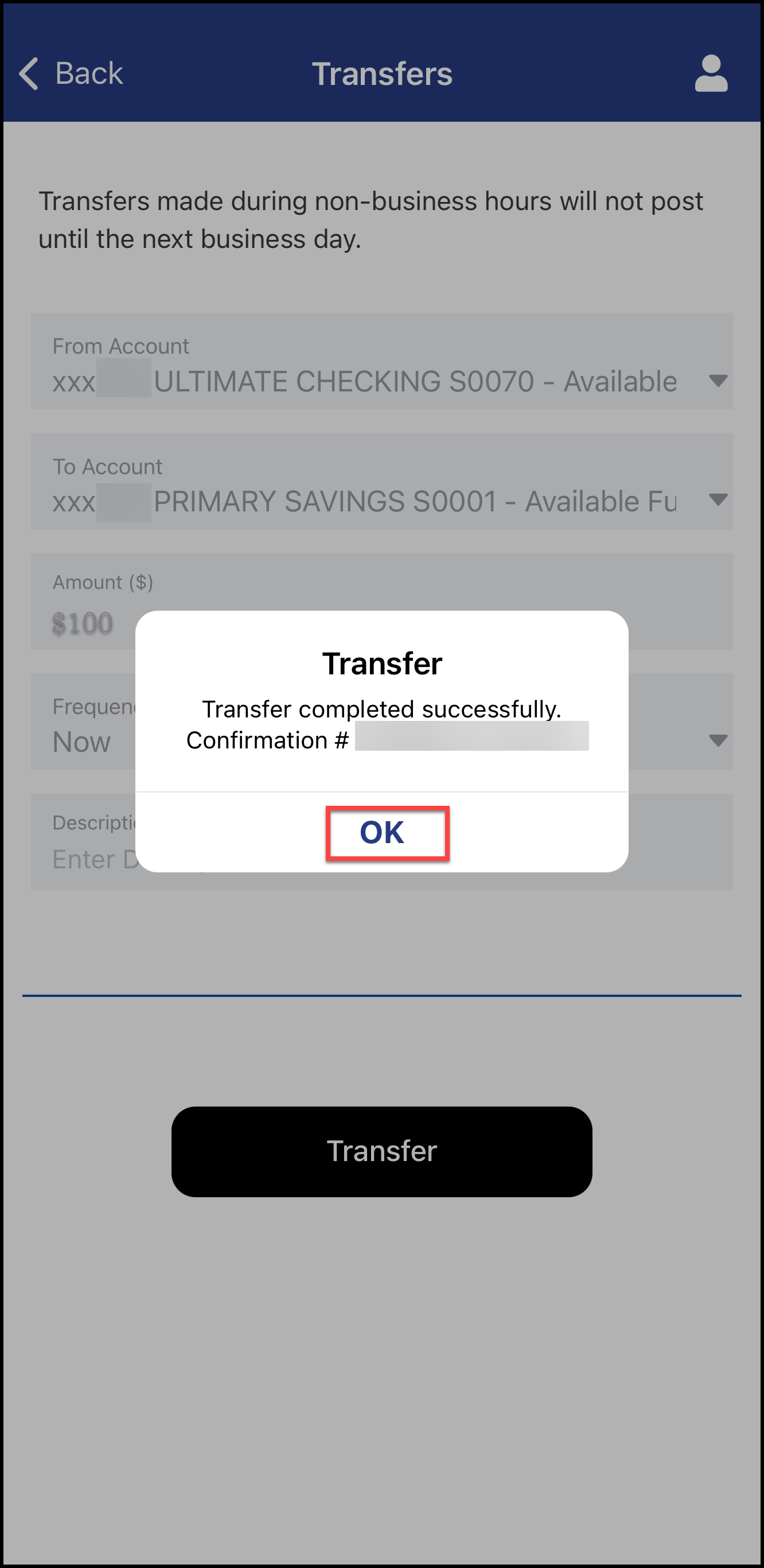
- A confirmation screen will pop up indicating the transfer has been successfully submitted
- Select OK to exit
5
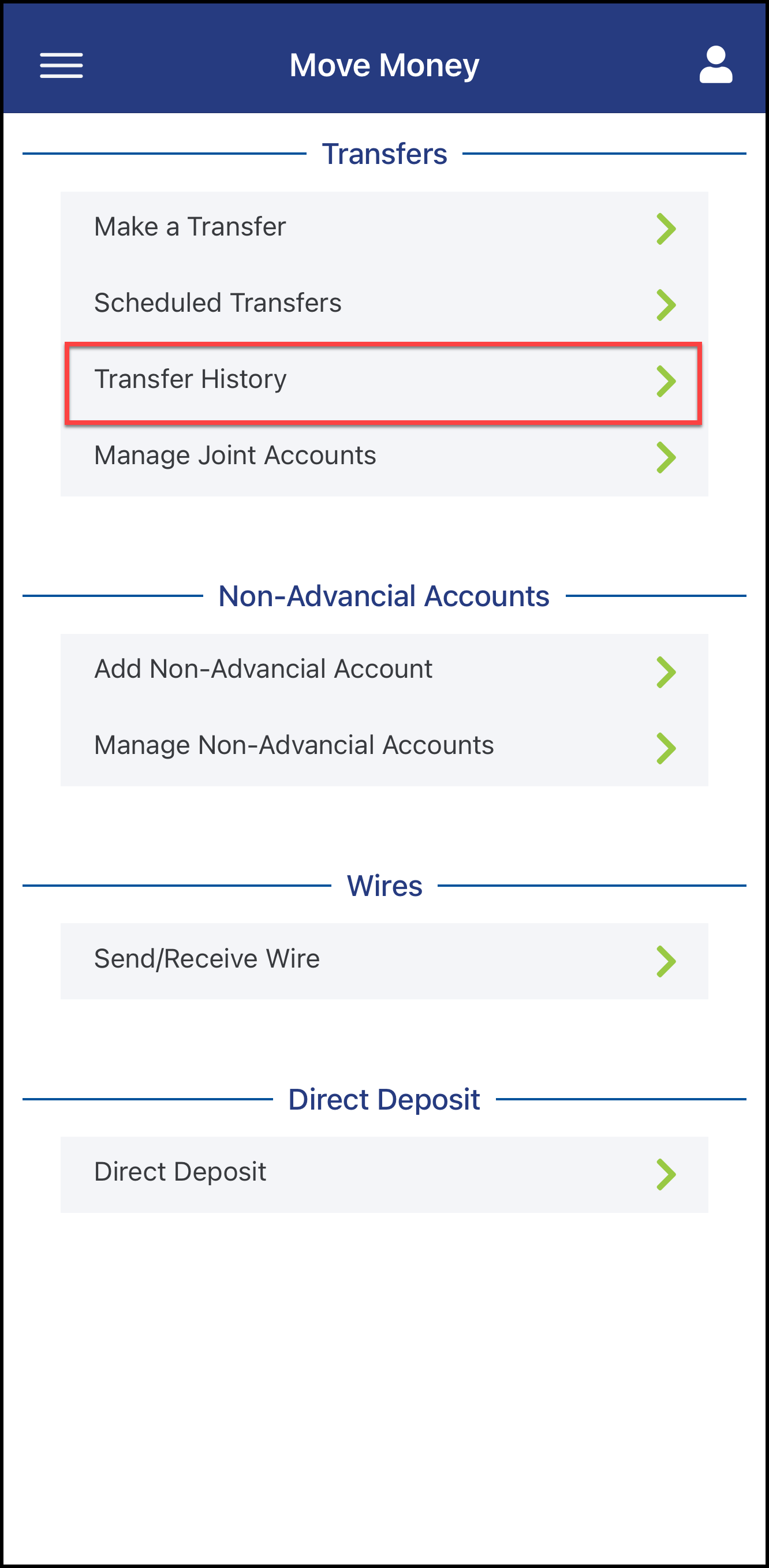
- To view your previous transfers, select Transfer History