

×
1
- Log in to the Advancial Mobile App
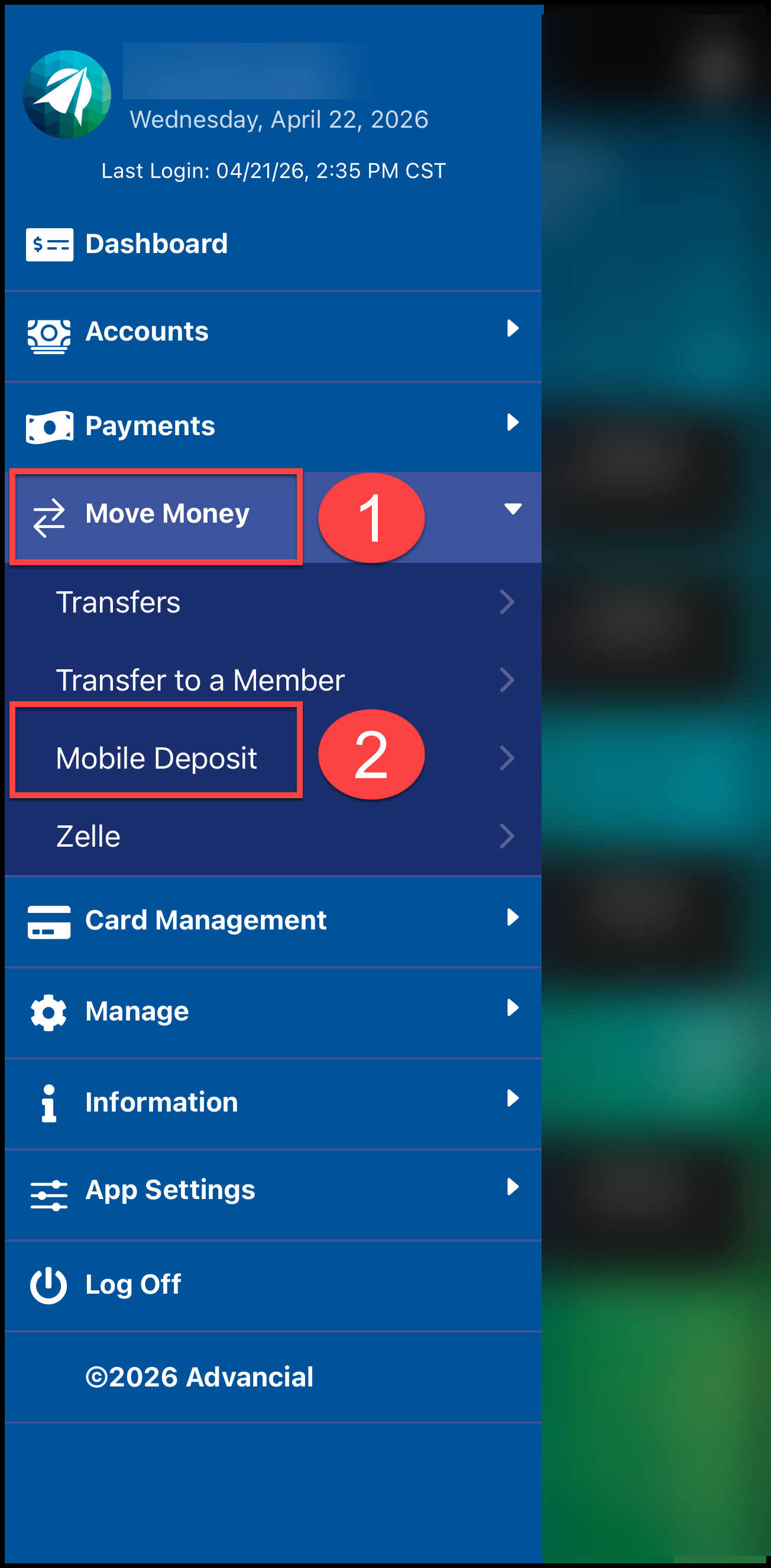
- Navigate to Mobile Deposit:
- Move Money > Mobile Deposit
2
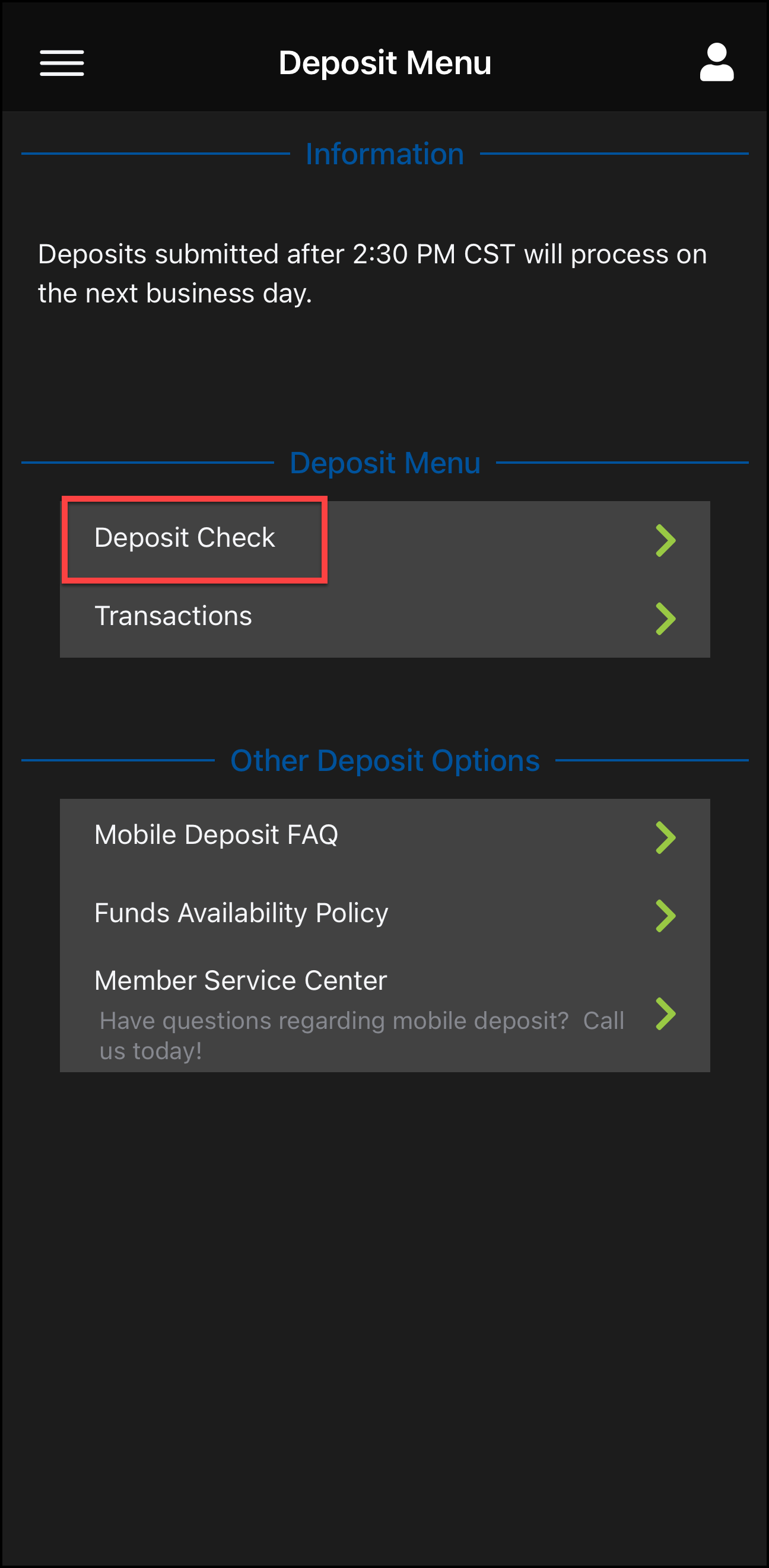
- Select "Deposit Check"
3
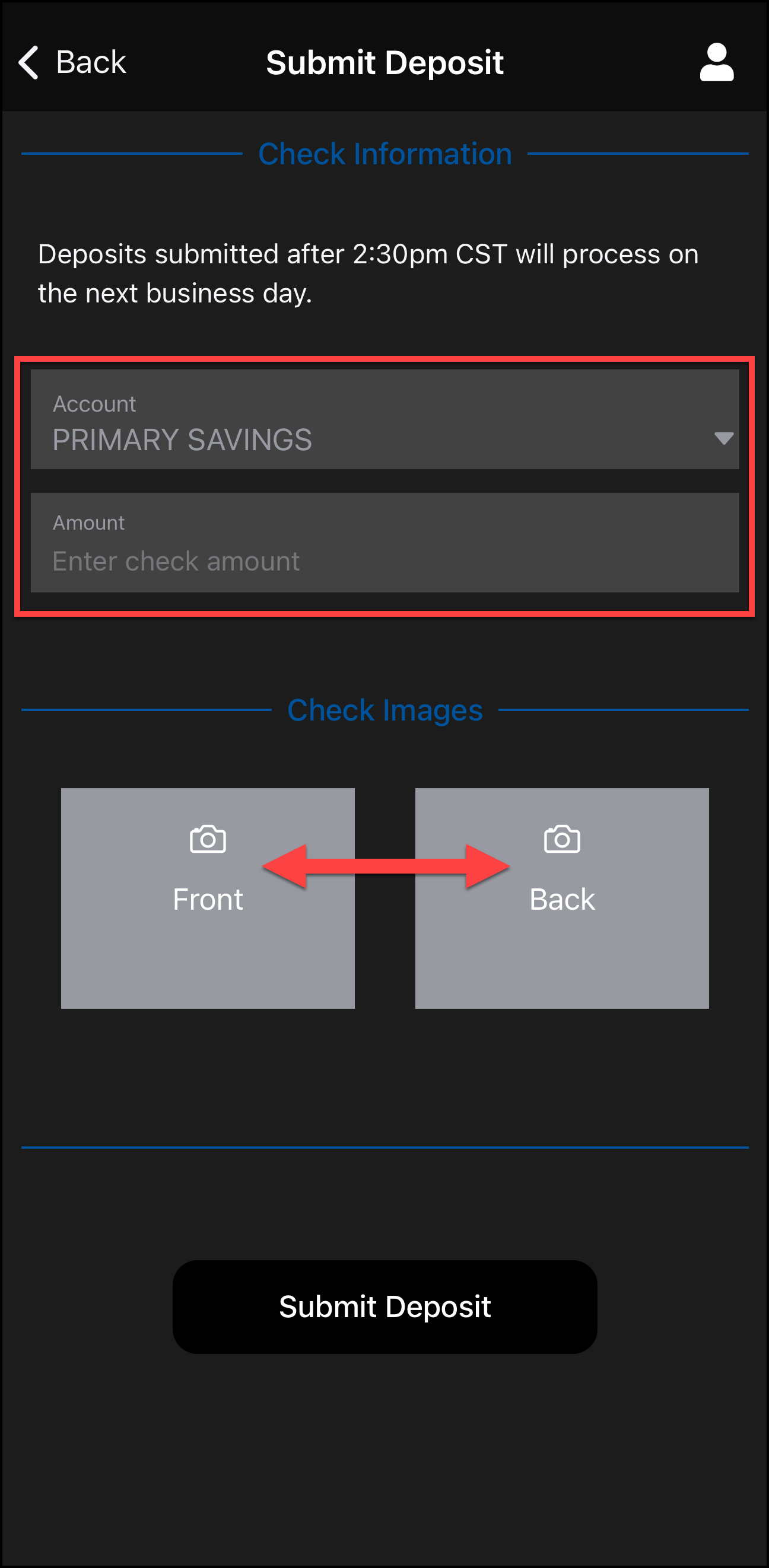
- Choose your deposit account
- Enter check amount
- Tap "Front" to take a photo of the front of the check
- Tap "Back" to take a photo of the back of the check
4
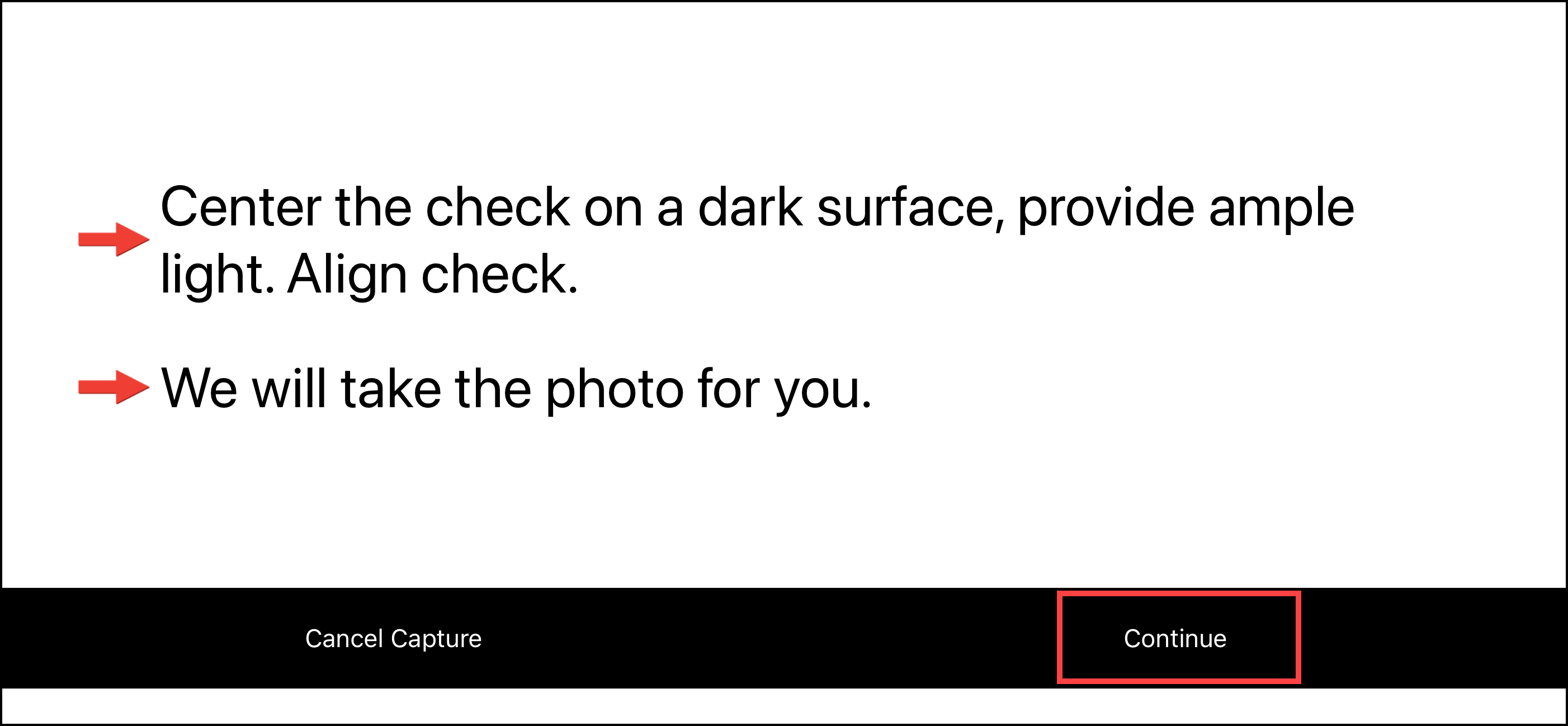
- Place check on a dark, flat surface
- Make sure the area is well lit
- Align the check within the frame
- Ensure check is signed and endorsed for Mobile Deposit
- Select "Continue"
5
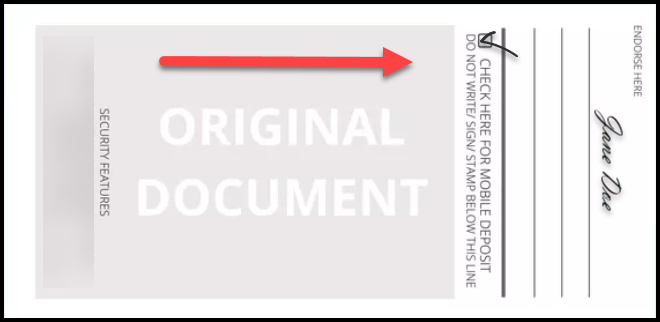
- Sign the back of the check
- Check the box for mobile deposit (if available) OR write "For Mobile Deposit Only"
- Make sure your signature is on the right side of the photo
6
- The "Success!" screen will indicate your check images were captured successfully

7
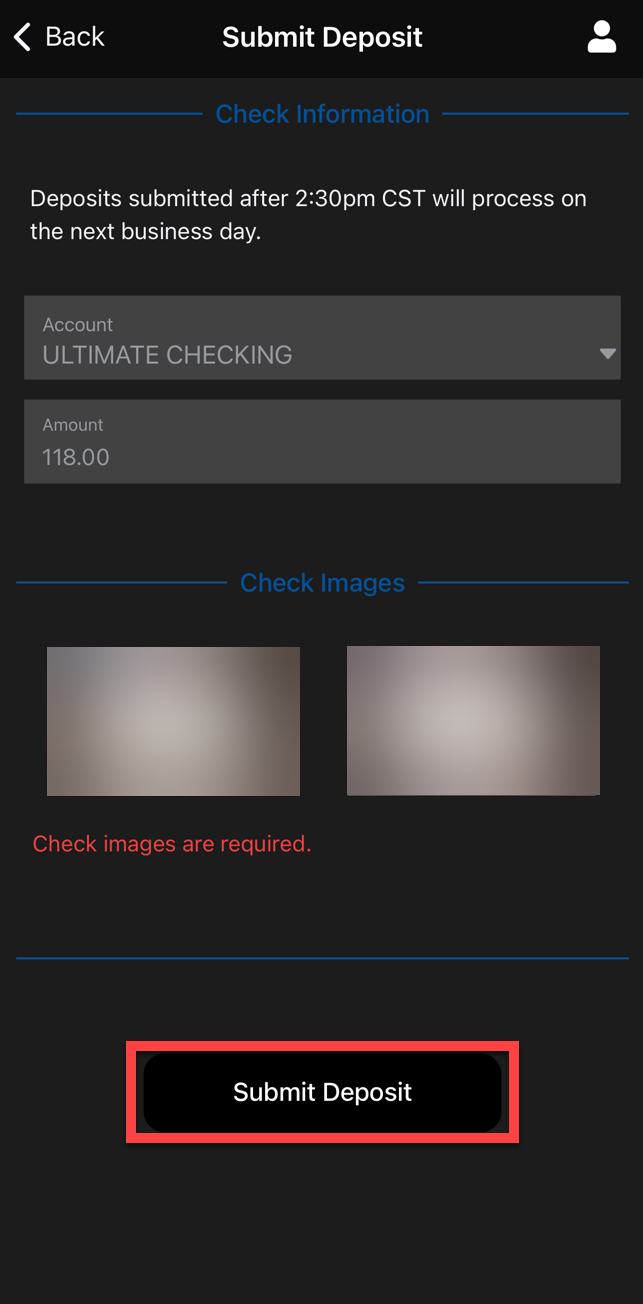
- Verify deposit account and amount
- Ensure both front and back images are submitted
- Select "Submit Deposit"
8
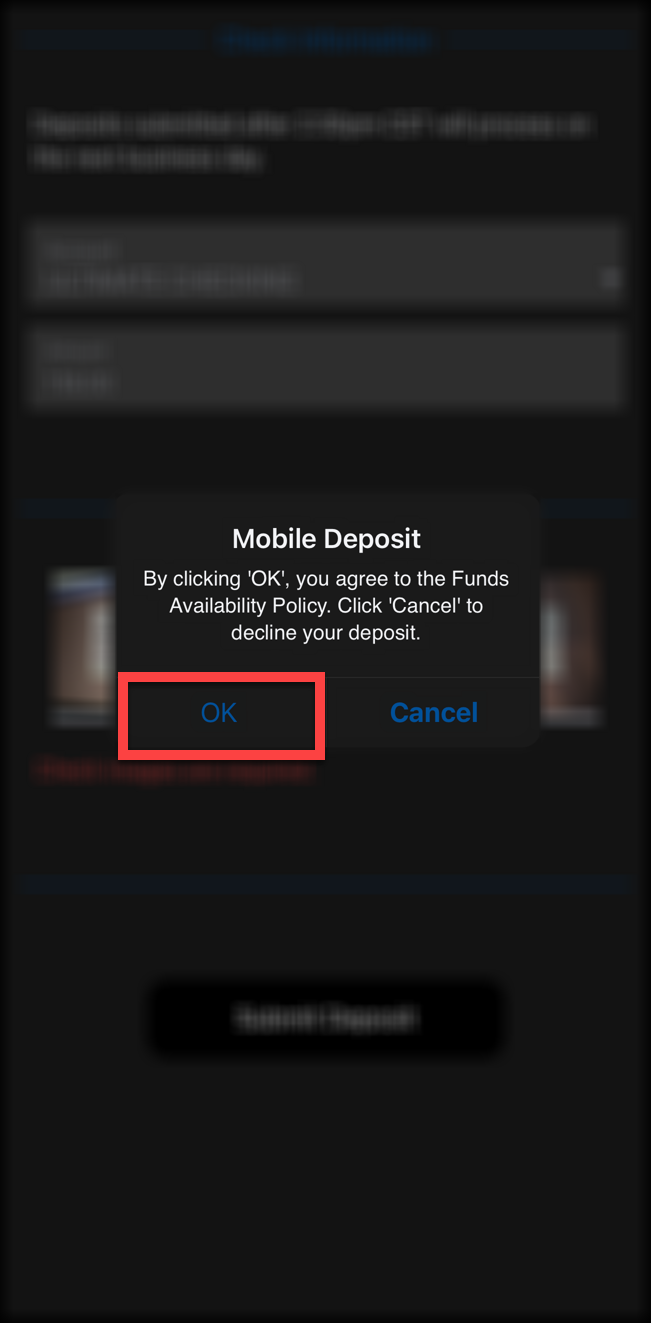
- Select "OK" to continue with your deposit
- Select "Cancel" if you need to make any changes
9
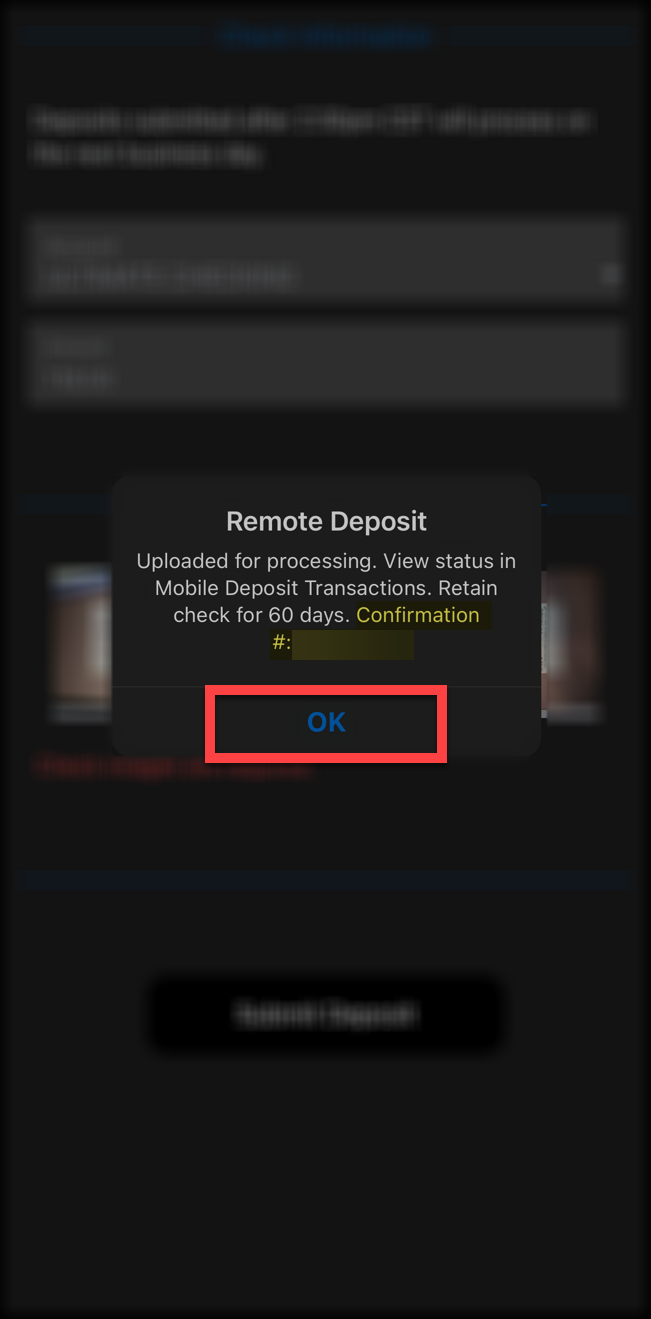
- The confirmation screen will indicate your deposit has been submitted successfully
- A confirmation number will be provided
- Select "OK"
10
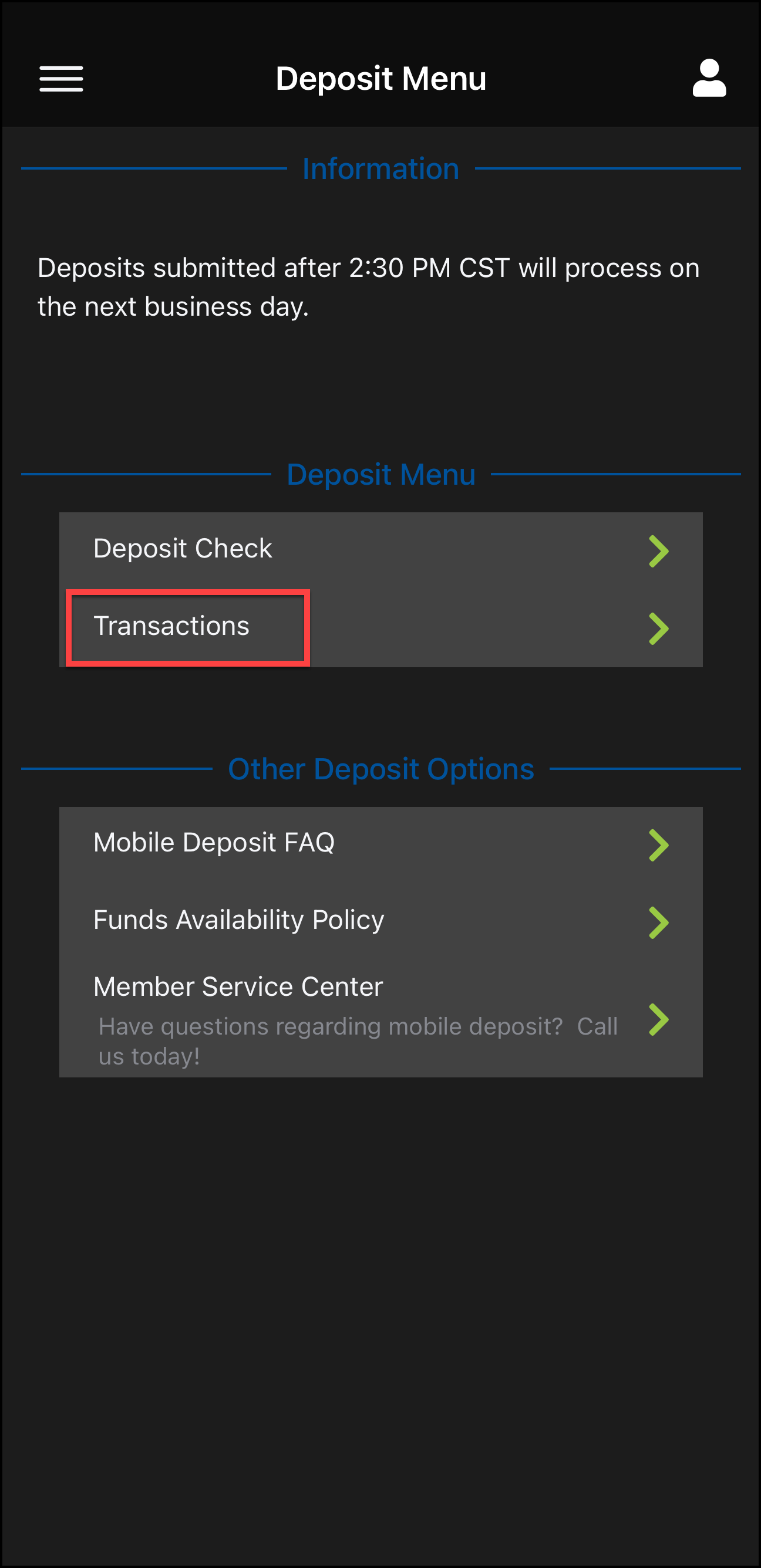
- To view your mobile deposits and status updates, navigate to "Transactions" from the "Deposit Menu"